
Configuring Quotes
- What is a Cart to Quote?
- How do I manage Cart to Quote?
- How does Auto-Approval of Quotes Work?
- Can I Attach the Quote in PDF to Email Notifications?
- Can I Select a Storeview for a Quote?
- How Do I create or Edit Quotes?
- How Do I Manage Products in the Quote?
- How to Manage Shipping Details?
- How to Use a Discount Calculator?
- How Can Customers Request a Quote From the Frontend?
- Can Customers Add New Products to the Quote After Forwarding Request?
- What is a Quote List?
- What is Quote-List-to-Quote Mode?
- How Do Customers Manage Quotes From the Frontend?
- Aren't Logged-in Customers Able to Request For Quotes?
- Will My Customers Get Notifications?
- How to Leave Comments?
- Can I Browse the History of the Negotiations?
Cart to Quote is to support natural negotiations when customers strive to get the precise and quantifiable product at the lowest possible price, and merchants aim at a higher profit, hoping to sell more and sell stuff faster. Furthermore, negotiations let shoppers experience merchants' flexibility, generosity, and appreciation of their needs. Cart to Quote allows clients to easily shape requests for quotes while browsing the catalogs and topping up carts. Admins get able to manage the quotes, suggest counter-offers, set email notifications and react to responses with change of quotation status - to shape order and close the deal in a mingle of an eye.
What is a Cart to Quote?
Cart to Quote facilitates negotiations between selected customers and store admins over the prices of products in a quotation. Negotiations are implemented in a sequence of consecutive requests for quotations and responses to them followed by various automatic notifications. A quote herein is a temporary state of either a product cart or quote list over the period of price negotiations.
How Do I Manage Cart to Quote?
Start work with customizing the three blocks of settings: General, Email Notifications, File Attachments, and PDF Options.
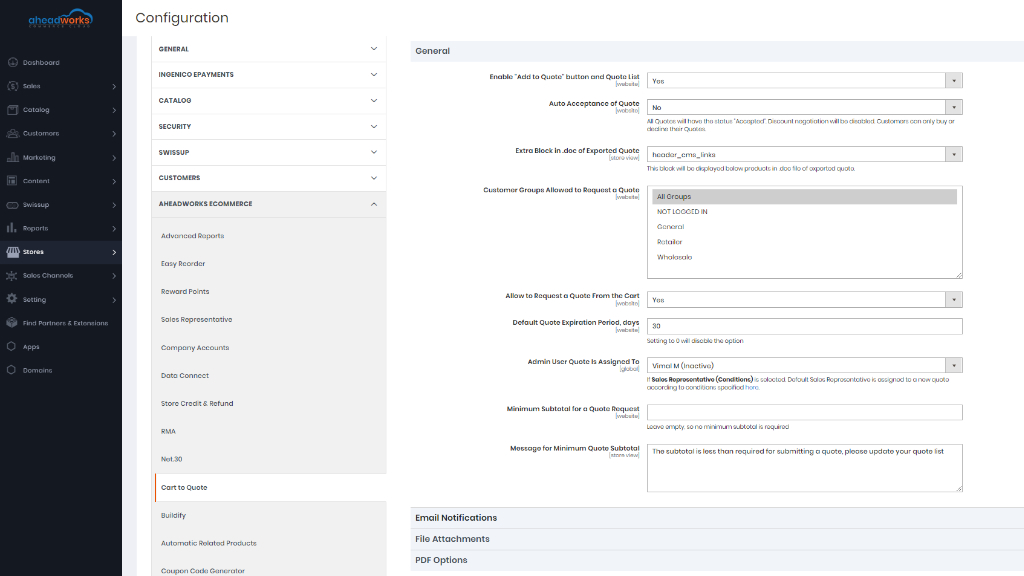
How Does Auto-Approval of Quotes Work?
With regard to the feature, the following logic is employed within the present version of the product:
- A quote receives Accepted status.
- An automatic comment or notification is sent to the customer (By default, the text is “Thank you for your Quote. Unfortunately, we don’t provide any discounts nowadays. You can buy this Quote at current catalog prices or decline it”). The comment is displayed in the Quote History Log and Quote Comments tab, both on the front- and backend.
- Discount negotiations are disabled.
- The customer is able to either place an order against the quote or decline it.
- The behavior of the quote on the backend matches the status “Pending Buyer Review”: Admins can only view the quote;
- “Submit for Approval” is hidden from the Quote page on the frontend.
The Quote Auto-Approval function can be used, for example, during massive sales or promo campaigns - when no further discounts are stipulated for a time being.
Can I Attach the Quote in PDF to Email Notifications?
If you set to Yes the Attach Quote in PDF to Email Notifications option to attach a PDF quote automatically to email notifications. The quote in PDF will be attached to email notification automatically when a quote is set to status Waiting for the customer.
Also, you can export a quote in a PDF file on the Quote Edit page by clicking on the Export to PDF button.
Can I Select a Storeview for a Quote?
To get access to all the quotations, past and present, proceed to the Quotes page.
Admin can select a store view during the creation of a quote in the admin panel. After clicking on the Add Quote button it will suggest to the Admin select a store view for a quote, so a quote can be assigned to a certain store view.
|
If a storeview was deleted, quotes of that storeview will not be available anymore. |
How Do I Create or Edit Quotes?
To create a quote on the backend click the Add Quote button. To edit the quote click the View active link in the correspondent cell of the Action column of the Quotes Grid.
Once Add Quote is clicked, it will suggest you choose a customer from the Create New Customer for New Quote grid.
The grid lists all customers who fall under the Request for Quote selection, giving information on their contact details and points of sign-up. For user convenience, there is a filter available on the page with value-boxes above each column of the grid. Fill in the box(es) with some data you are looking for (parts of known data) and click the Search button above the grid. Click on the row of the chosen customer and proceed to creating the quote. You will then be redirected to the Create/Edit Quote page.
|
When in the Edit Quote mode, the Quote and Account Information block will feature three more fields:
|
How Do I Manage Products in the Quote?
In the Product block of the Edit / Create Quote page you can add products to the quote and remove them from it, change quantity of products, configure product parameters, alter the proposed price of each product, browse the discounts and totals.
|
The name of the product here is an active link. If the product is simple, then clicking on the name will redirect you to the Product Page. If the product is configurable, then clicking on the name will launch a popup to suggest editing product parameters. |
To alter the quantity of a product on the quote, use the Qty text-box. When done, click the Update Items and Quantities button behind the grid to update the figures in the table. Alternatively, you can use the Configure button below the name of the product. When clicked, it calls out the Configure Product popup.
The Configure Product popup allows selecting a different size, color (for configurable products only) and quantity of the chosen product. After saving results, the quote summary grid will get updated automatically.
To alter the proposed price of a product (by default - product catalog price), use the Proposed Price text-box. When done, click the Update Items and Quantities button behind the grid to update the figures in the table.
|
On update of the quantity of a product, the proposed price does not change to the default value. |
To remove a product from the quote, use the Action drop box, select "Remove" and click the Update Items and Quantities button behind the grid.
|
The Configure active link next to the product name tells you it is a parent-product, and when clicked calls out the Configure Product popup, where you may set the child-parameters of the given parent-product. Alternatively, use the grid to select the child-products. |
Once all target products are selected, click the Add Selected Products to Quote button in the top right of the grid. The products will be added to the quote summary grid.
How to Manage Shipping Details?
The Shipping Information block features the Shipping Address form and Shipping Method radio-button list.
For convenience reasons, the block is rolled-up by default. To roll it down click the Add/Hide shipping information active link.
Shipping address is part of the data stored about a customer, and thereby the form herein will show the default shipping address as indicated in the customer profile. If need be, you may select a different address from the Select from existing customer address dropbox or suggest a new address by filling-in the required fields in the form.
How to Use a Discount Calculator?
In this block you can calculate a discount to the quote.
It features all sorts of totals: Total Cost, Subtotal, Catalog Total, Total Discount, Quote Total (excluding Tax), Tax Total, as well as shipping - an extended total summary as compared to the Quote Total block.
When a value is entered in one of the fields, the whole Quote Totals block will get updated and the figures recalculated.
|
The % or numeric rebate is applied to the Subtotal of the quote. |
How Can Customers Request a Quote From the Frontend?
The Request a Quote option is available for specified users from Cart. In a usual way customers add products to Cart from wherever they can find an option to do so: catalog page, product page, wish list or search results. Once in Cart, shoppers will find the Request a Quote button, just beneath the Proceed to Checkout one.
Clicking the Request a Quote button will open the New Quote popup. This is where the customer will be asked to type in the name of the request, provide the details as plain text and attach, if necessary, any files.
|
Any discounts applied to the cart price will be discarded in the request for a quotation. |
|
All products in the cart will fall into the quote request. |
Clicking the Send button to forward request to the admin.
Can Customers Add New Products to the Quote After Forwarding Request?
Once the request is forwarded to the admin, the customer will not be able to add any products to the quote, nor will he/she be able to remove or alter the products in the request. Not until the reply comes from the admin.
At the same time, customers are free to start a new cart and, if need be, convert it into a new quote.
What is a Quote List?
Quote List is where customers are able to browse the products on the quote list, update their quantities, delete products from the list, and update products. The functionality of thereof is the same as that of the mini Quote List as described above.
In addition, the full Quote List page features the Quote Summary. This is where customers can see an estimated price of shipping and tax, alongside the subtotal and total prices. Finally, the Request a Quote button will take you to the New Quote popup (see above) where you will be able to finalize the requests for quotes.
If the minimum amount of subtotal requested by the customer is less than the amount set by the Admin, then the customer will see the message "The subtotal is less than required for submitting a quote, please update your quote list".
The Quote List comes like the Shopping Cart. Its icon will be available next to the cart icon in the top right corner of the page. Adding products to a quote will activate a numeric indicator next to the Quote List icon. The indicator will tell the number of products on the quote list.
Clicking the Quote List icon will open a mini quote list, where customers can browse the details of the products, update product quantities, check prices and delete items.
To update, the quantity of the product, click the Qty text-box and enter a new digital number. The Update button will appear next to the text box. Clicking the button will save the changes, no page reload is required.
To update the product on the list, click the pen icon next to the Qty text box. You will then be redirected to the page of the product, where necessary changes can be done. On completing the new configuration, click Update Quote List to confirm the changes.
To view the product and add its alternatives either to Cart of Quote List, click the name of the product. You will be redirected to the product page, usual functionality ensured.
To view the full Quote List, click the View and Edit Quote List active link at the bottom of the mini Quote List.
What is Quote-List-to-Quote Mode?
The Quote-List-to-Quote is another mode of arranging products into a quote to substitute the Cart-to-Quote mode should relevant set-up be done on the backend. The feature adds the Add to Quote button next to Add to Cart. In this mode, customers are able to add products to a quote either from a catalog or product page. However, the products selected with the Add to Quote button do not get into Cart, but get aggregated into the Quote List. Thus in the Quote-List-to-Quote mode customers are able to populate Cart and Quote in parallel.
How Do Customers Manage Quotes From the Frontend?
To browse and manage requests for quotes, customers need to go to My Quotes.
The My Quotes grid will give them some vital details of the quotes: Status, Total Price, Name, Dates (created and last updated). Each cell in the Actions column has the View active link, which will redirect them to the Quote Page.
Depending on the status of the quote, the Quote Page will feature various alternatives.
|
When the status of the quote is either Pending Buyer Review or Accepted, the Quote page allows changing the order of the items in the quote. |
When at least one item is moved along the list, the “Save Items Order” button is displayed above the list on the right side. It is only after clicking on the Save Items Order button, that the new order is saved.
Other features of the My Quotes page will not differ drastically with regard to the quote status.
|
To alter the products (for example, if the size is wrong) or to add new products to the quote, customers will have to write a comment to the admin, indicating the details of the alterations and renegotiate the quote. The admin, in turn, will satisfy their favor manually on the backend. |
Aren't Logged-in Customers Able to Request For Quotes?
When a Quote is created by Not Logged-In customer, the workflow of requesting and negotiating quotes is quite the same as with Logged-In users:
When Admin clicks the “Approve” or “Send” buttons (in the comments section), an email notification is sent to the customer as usual. Additionally, an external link is attached to each email. This link is generated automatically once and then sent to a customer each time when he receives email notifications from Admin. When the customer follows the link, he is redirected to the Quote page on the frontend. The frontend view is the same as for the Logged-In users.
If the user requested a quote as a guest and after it is registered - he will have the quote available in the account and can continue negotiations.
Will my Customers Get Notifications?
Yes, your customer will get notifications about quotes. Any updates to the active quotations, as well as the comments to the ones, will come as email messages both to the customer and admin. Furthermore, the copies of the messages will be forwarded to the address stated in CC in Settings and in Edit / Create Quote.
The message will have the name of the quote, an active link to the corresponding quote page, alongside the comments, changelog and quote summary for quick review.
How to Leave Comments?
Admin can leave a comment from the backend. In the Comment text field, Admin can type comments, attach any files, if need be, and click the Send button. The comment will appear both in the customer's email inbox and in My Account on the storefront.
To leave a comment to the Seller, customers can proceed to the Comments tab. The tab opens the negotiation chatbox between the customer and the seller. Here customers can read the previous messages, type in the new ones in the Comment text field, attach files and click Send to forward the comments to the admin.
Can I Browse the History of the Negotiations?
As Admin you can browse the history of the negotiations from the backend. Open the History log tab. This is where all the updates to the status and total price of the quote, alongside the history of commenting, are available.
As a Customer, you can check the history of the negotiations from the fronted. To browse the history of the negotiations, refer to the History tab. This is where you will find information on the changes to the status of the quote, as well as the history of messages between the parties.
In addition to the above, The Quote Page contains a block of buttons and active links. The combination of thereof may change from quote status to quote status (see the beginning of the chapter), but the Export to .doc button/active link remains always on the block.
When you click on the Export to .doc button, the file in the .doc format is downloaded automatically.
The following data is exported in the file:
- Quote name
- Quote # (Order # if this Quote has status Ordered)
- Created date
- Expired date
- Products on the quote (as displayed in the Products tab)
|
If a customer changes the order of the items on the quote list, and then exports the quote into .doc without clicking on the button “Save items order”, items are exported in their original order. |