
Company Management
- What is a Company Accounts?
- How do I manage Company Accounts?
- How about Roles and Responsibilities in Company Accounts?
- How do I create and edit companies?
- Which domains cannot be submitted as company domains?
- How to delete company users?
- How do I delete a company's account?
- What is a Company Account as a Customer Attribute?
- How is the Order Approval Process going?
- What are Authorize.Net particulars in Company Accounts?
Company Accounts facilitate the B2B model for an eCommerce business. Store admins find it easier to manage the accounts of companies, and project for higher sales as they see a broader purchasing strategy of the partner. Corporate customers get able to stay organized within a sharp structure with apparent role boundaries; they act as one but loose no individuality and always retain composure and feel the back of the colleague.
What is a Company Accounts?
Company Accounts allows creating and managing company accounts, the one-parent-multiple-children hierarchies with apparent role boundaries of member accounts. Company Accounts helps online vendors and their wholesale customers interact as brands, sophisticated engagement assured for best business-to-business practices.
How do I manage Company Accounts?
You can manage company accounts from the backend and from the storefront.
From the backend:
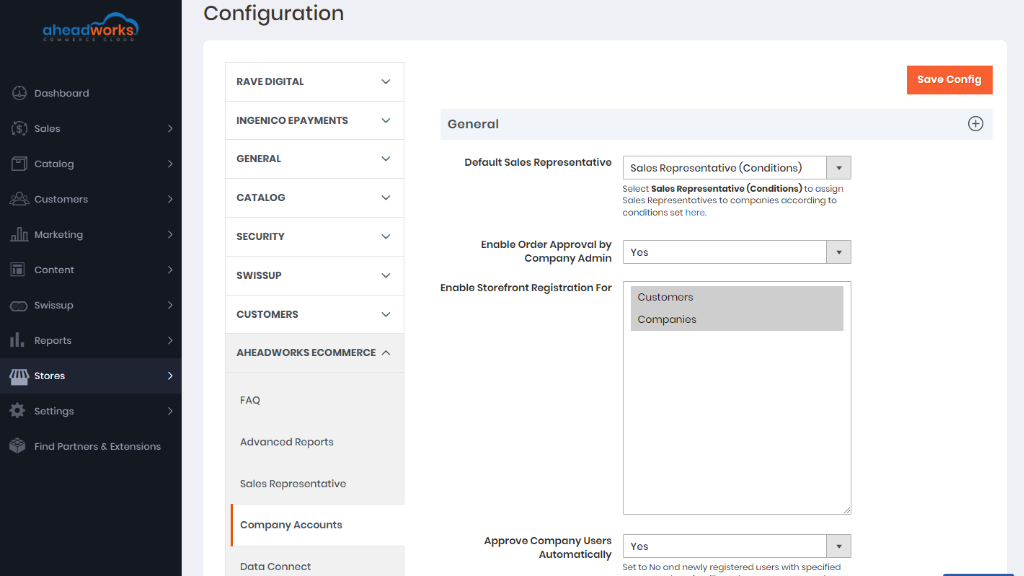
To access the settings, proceed to Company Accounts settings. The configuration page is split into three sections: General, Email and New Company form Customization.
General settings
- Default Sales Representative - select a store-user to be the Default Sales Representative to deal with company accounts. The name and email address of the Default Sales Representative will be available to the company users on the Frontend. The Default Sales Representative is then a contact point regarding all company-related matters;
- Enable Order Approval by Company Admin - set to Yes to subject orders to the Company Admin's approval in cases when order subtotals surpass the established by the Company Admin limit;
- Enable Storefront Registration For - select registration form for standard Magento customer:
- If the Customer's option is selected, the company's registration form is hidden on the frontend. A company account can be created only from the backend. The section New Company Account is hidden on both Sign In and Create an Account pages.
- If the Company's option is selected, the customer’s registration form is disabled. A customer account can be created only from the backend. The section New Customers is not displayed on the Sign In page and it’s replaced with the New Company Account.
- Approve Company Users Automatically - set to Yes, newly registered users with specified company domain will not need company admin approval. If it is set to No, all users, who register on the frontend with the specified domain, get a new status - Pending on the frontend. All new users can be approved by the company admin on the frontend.
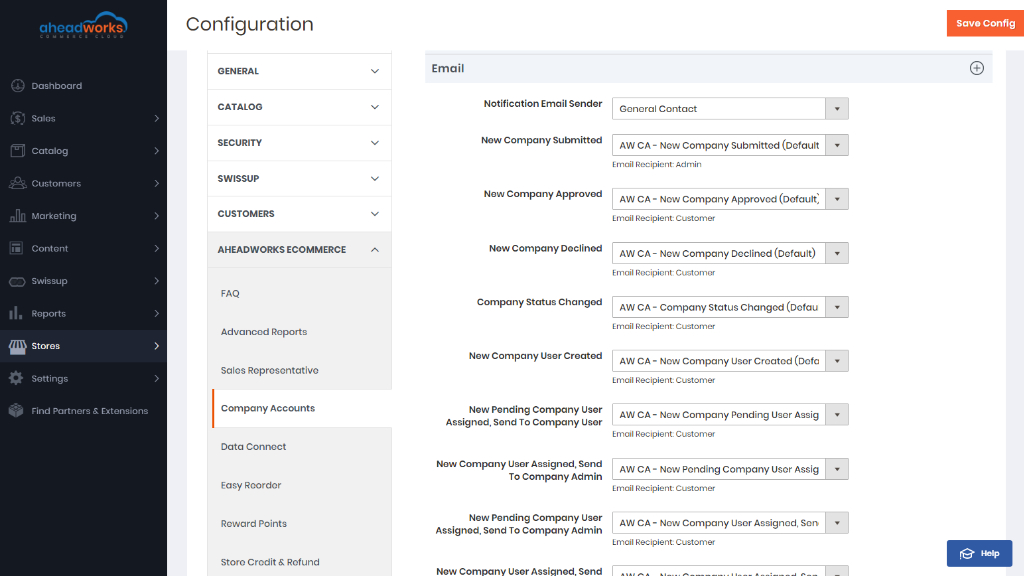
Email Settings
First, specify the sender of the notifications. Do that with the help of the Notification Email Sender drop-box. Next, select the templates for the notifications considering the following:
|
Configuration Parameter |
Trigger Event | Email Recipient | Comment |
|
New Company Submitted |
New company account submitted for approval | Admin |
The Admin will not receive the email when a company is created on the Frontend, if the Default Sales Representative is not selected in the settings. When a company is created on the Backend, a Sales Representative is selected automatically in the New Company form. The Admin receives the email in the latter case. |
|
New Company Approved |
Company account approved | Customer | |
|
New Company Declined |
Company account rejected | Customer | |
|
Company Status Changed |
The status of the company account is updated | Customer | |
|
New company User Created |
New customer is added to the company account | Customer | |
|
New Company Domain Created by Company Admin |
A new domain is assigned to Company Domains and has status Active | Admin | |
|
New Company User Assigned, Send To Company Admin |
A customer is assigned to the Company | Customer | |
|
New Company User Assigned, Send To Company User |
A customer is assigned to the Company | Customer | |
|
Company Domain Approved by Sales Representative |
The Sales Representative approves the domain | Customer | |
|
Company Domain Status Changed by Sales Representative |
The Sales Representative changes the status of the domain | Customer | |
|
Company Domain Status Deleted by Sales Representative |
A domain is deleted by the Sales Representative | Customer | |
|
Company Domain Status Changed by Company Admin |
A domain receives a change of status, either from the Backend or Frontend | Admin | |
|
Company Domain Deleted by Company Admin |
A domain is deleted | Admin | |
|
Order was Sent for Approval |
A new order was sent for approval by a Company User |
Admin | |
|
Order Status Changed |
Corporate order status is changed | Customer |
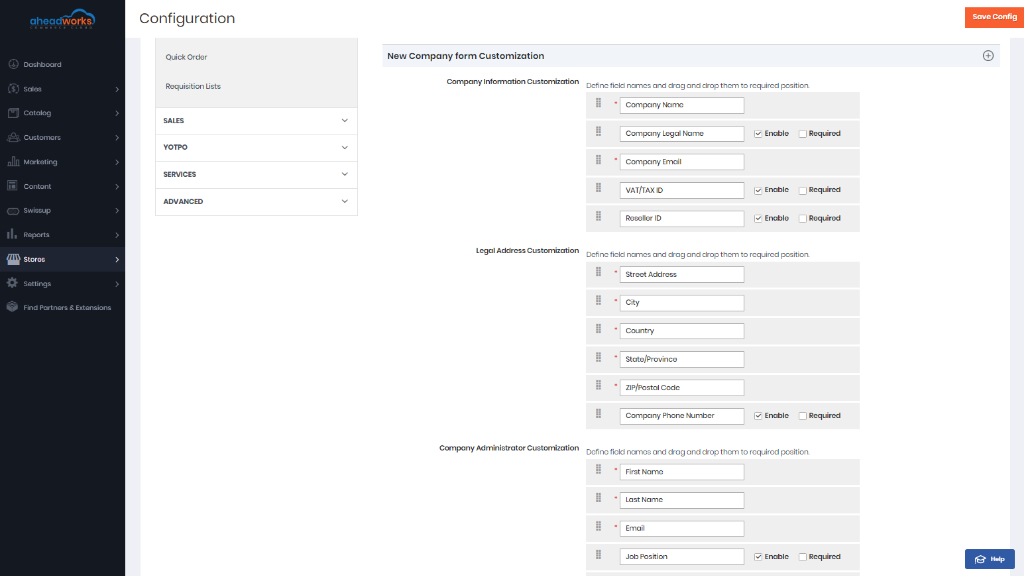
New Company Form Customization (for Frontend)
To customize the New Company form, you can do the following:
- rename the fields
- shuffle the fields to the desired order
- enable or disable fields
- set fields as "Required"
The New Company form Customization section is split into three blocks: Company Information Customization, Company Administrator Customization and Legal Address Customization.
From the storefront:
Customers use My Account on the Frontend to manage company accounts in the same way as they do for individual customer accounts. The list of features is extended here with those of Company Information, Company Users and Roles Permissions.
Company users find the details of the company on the Company Information page. This information is given in the way it was provided by the Company Admin on creating the company account.
To edit the information, the Company User clicks on the Edit active link.
For the Company Admin only, the Company Information page also shows the Company Domains section. The Action cells contain the Delete and Deactivate/Activate links which allow to manipulate the domains.
To add a domain, the Company Admin clicks on the Add New Domain button. A popup emerges prompting to indicate a domain name.
On clicking on the Send for Approval button, the popup is closed, the record is added into the grid with status Pending. On clicking the Cancel button, the popup is closed and the record is not saved.
|
New customer accounts registered with emails that belong to the company domains will automatically be added as child accounts to the company. This solution may save a lot of time on assigning users to companies. |
|
When the email of an existing customer is changed into the one within a company domain, the user has not been added to the company automatically. |
Сan I automatically approve the Company Users?
Users with status Pending are not able to sign in until they get status Active by company admin. On the frontend, new users are displayed on the Company Users grid with status Pending. This rule works only for the frontend, on the backend admin can’t change the status. It’s only displayed on the Customer edit page > Customer view > Status in Company.
Backend admin can register company users without the approval process. Backend actions with Pending customers will be the same as with Inactive status.
How to add or edit Company users?
The Company Users page lists all the company account users. The status of a company user may take one of the two values: Active or Inactive. To activate/deactivate a user, click on a corresponding active link in the Actions column.
To edit or add a company user, the Company Admin clicks on the Edit active link or the Add New User button respectfully.
All fields in the New User form are mandatory. They are text fields prompting the User's job position, name, email and phone number, as well a drop-box User Role to pick out a role of the user within the company account (Administrator by default). When no suitable role is found in the drop-box, the Customer User proceeds to the next step.
How about Roles and Responsibilities in Company Accounts?
To browse, edit and add new roles, the Customer User goes to Roles and Permissions in My Account.
The page features a table with all the roles available in the account. Company users can see the number of users which belong to a role, the name and id of the role.
To edit or add a new role, the Customer User clicks on the Edit active link or Add New Role button respectively.
There are three blocks on the Create/Edit Role page: General Information, Store Credit & Refund and Reward Points.
|
Company admin has all permissions no matter which role permissions he has, even if permissions are changed, these changes will not apply to his permissions. |
|
If the Company Admin wants to change the administrator of the Company, he/she does that on the Company Information Page (on the Frontend) or from the Companies Grid (on the Backend). The Company Admin may later reassign the former Company Administrator to the company under a different role, to assign him/her to a different company or to delete his/her account. Make sure, the Company Admin does not delete the Administrator of the company account, never mind how many users with the Administrator role they have within the account. |
Once finished, the Company User clicks on the Save button. The User will be redirected to the Roles page.
How do I create and edit companies?
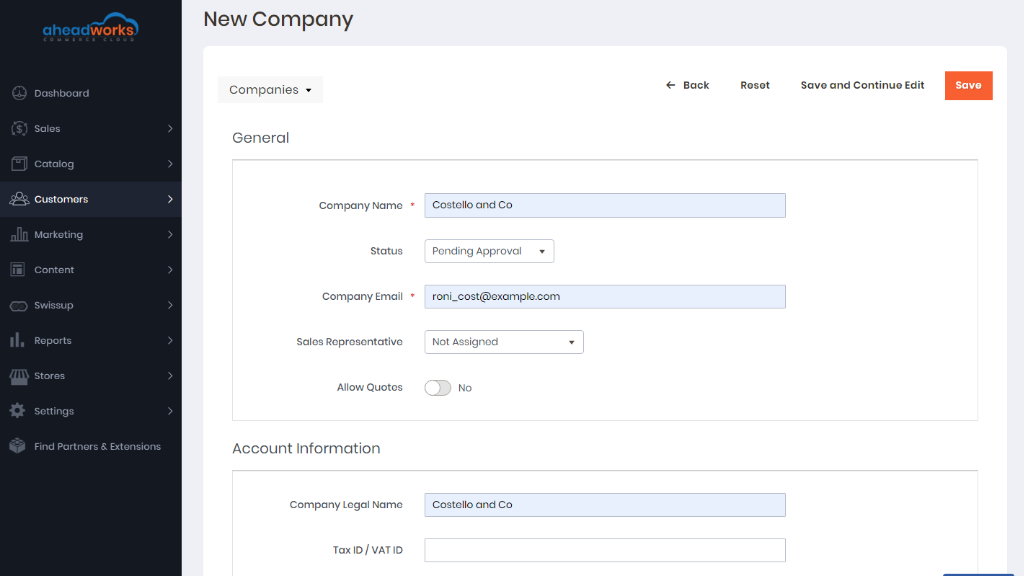
To get access to the company accounts, proceed to the Companies editing page.
To create a company account from the Backend, click on the Create a New Company button.
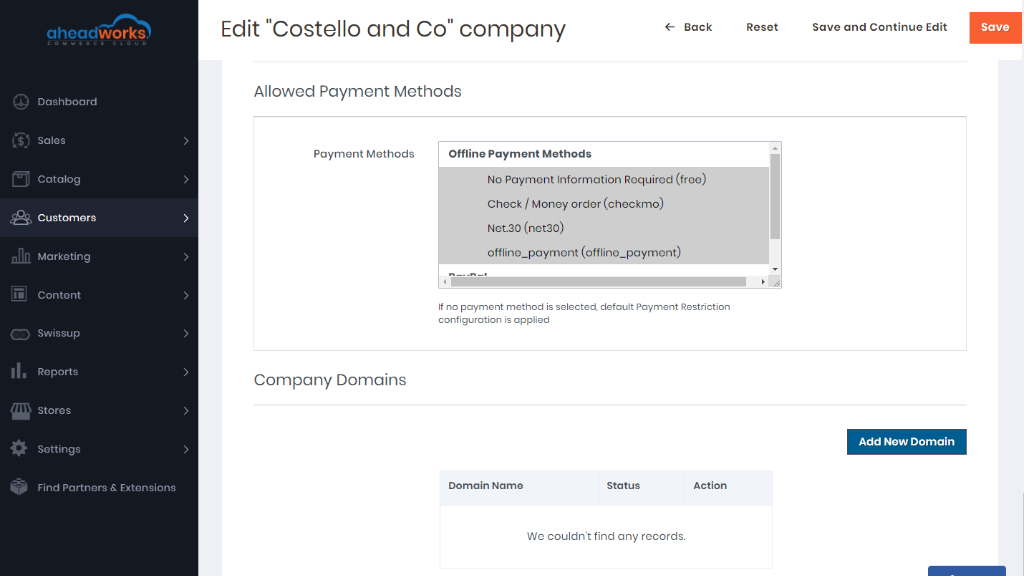
This is where you proceed with the following blocks: General, Account Information, Legal Address, Company Admin Information, Credit Limit, NET 30, Notes, Company Domains (only for the Edit Company page) and Allowed Payment Methods.
The value of the Customer Group parameter will be assigned to all users of the company account, as chosen herein. Company account users are added by the Company-Admin (or by other company users with relevant role-permissions) on the Frontend.
Creating a company account on the Frontend is similar to creating a customer account. When the module is successfully installed on your store, the Sign-In or Create New Account page will have an extra block - New Company Account. The Customer clicks on the blue button Create a Company Account to start a company account.
On clicking on the Create a Company Account button, the user is redirected to the New Company page, where he/she is prompted to fill in the New Company form. The form will have the fields as specified in the extension configuration.
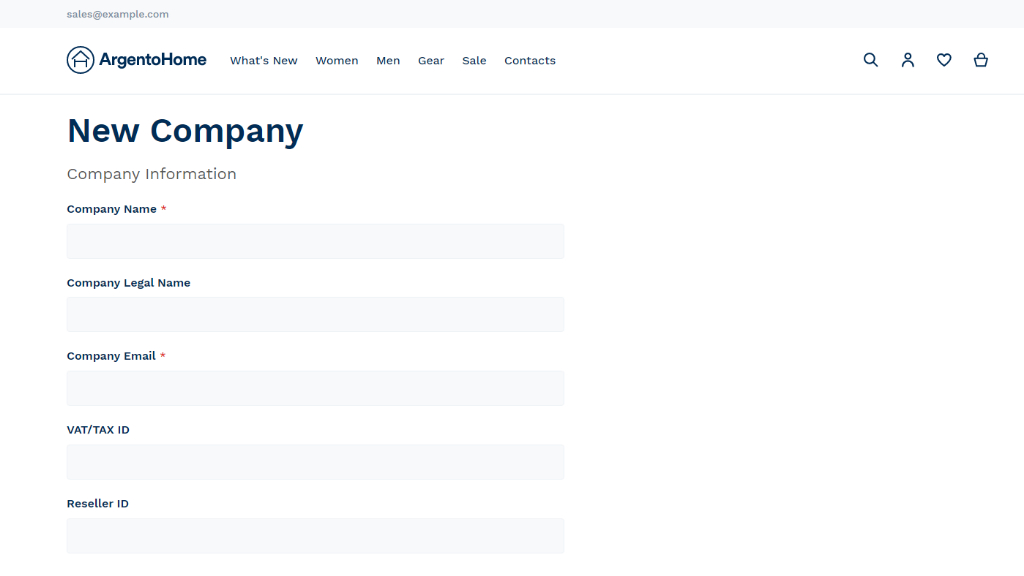
On creation of the account, a notification arrives to the email inbox of the Company-Admin. The notification will have a link to set a password and enter the account for the 1st time. Please mind, the link is subject to expiration ( the period of link validity is set in Backend → Stores → Configuration → Customer configuration → Recovery Link Expiration Period). The link stays active even when it expires. In this case, instead of taking the user to the "Set Password" page, it will take him/her to the 'Forgot password' page. On entering the email address in the offered field, a new notification with a re-activated link will be forwarded to the user to set a password and enter the account.
How to configure company domains?
This block is available only on the Edit Company page.
When creating a company from scratch (that is when working on the New Company page), you will first have to save the company and then edit it to add company domains.
To delete a domain from the grid, and untie it from the company account, use the respective Delete link. The Company Domains block comes with a grid and the Add new Domain button. The grid collects the domains assigned to the company account into the three columns: Domain Name, Status, and Action. The Action columns contain the Delete active link.
When a domain is deleted, users whose emails belong to that domain are not removed from the company account. They continue to be the users of the company account.
To update the status of a domain, click on the name of the domain and update the status. The Configure Domain popup up will emerge. The popup has two fields: Domain Name and Status. Use Status to update the status of the domain.
When a domain is on the grid, it is not possible to change the name thereof. The Configure Domain popup up will have it disabled. You will have to delete the domain with the 'incorrect' name and add a new domain.
To add a domain, click on the Add New Domain button. The Configure Domain popover will prompt you to enter the name for the domain and specify its status. The status may take one of the three options: Inactive (by default), Pending and Active.
To save the domain, click on the Save button in the top right. To cancel the operation - Cancel.
Customers who are already registered in your store, and whose emails belong to the newly configured domain will NOT be added to the company automatically. If need be, you will have to do it manually.
Which domains cannot be submitted as company domains?
There are some domains that cannot be submitted as company domains (Gmail, yahoo, 10mins emails, etc). If the Store-Admin or Company-Admin tries to submit them, a popup is displayed: “This domain address can’t be used“.
More examples of 'forbidden' domains can be found here:
- https://temp-mail.org/en/
- https://www.emailondeck.com/
- https://www.guerrillamail.com/
- https://github.com/mailcheck/mailcheck/wiki/List-of-Popular-Domains
How to delete company users?
- Make sure that deleting entities, like customers, may cause serious and irreparable disruption in other entities linked to thereof, like orders, company accounts end, etc. Deleting a customer deletes his/her orders too.
- Deleting a customer who is the Company Admin is made not possible. A corresponding error will be shown on an attempt to do so, and no action will be applied. To overrun this restriction, reassign the Company-Admin in the Company Admin Information block on the Create/Edit Company page and then delete the desired customer profile.
How do I delete a company's account?
When the status of a company is Declined, the Company Edit Page displays the Delete button. Click on the button to remove all company data including that of the sub-accounts and company account itself. A popup is displayed: “Do you want to delete this company permanently? Company data and related sub-accounts will be deleted.” Click on Yes to finalize the proceed, click on No to cancel the operation.
|
The email of the deleted sub-account of the Company-Admin can be used for the registration of a new customer account. |
|
This can be a solution in cases when a company account is created by mistake and the email address is to be freed for a customer account. |
What is a Company Account as a Customer Attribute?
According to the logic of the present product, Company Account is a customer attribute. Thereby, discounts, refunds, or rewards to a particular customer within the Company are visible and available to all the company users.
Moreover, the Backend will feature the Company and Status in Company columns added to the Customers Grid, alongside other company information in the layouts of orders, invoices, etc.
How is the Order Approval Process going?
It is possible to approve orders in two ways: from the backend and from the frontend.
From the backend:
The Store Admin can approve or reject orders instead of the Company Admin. This is only possible for orders with status Company Pending Approval.
To approve or reject any order, open the order page on the backend and refer to the Approve and Reject buttons.
|
For orders with status Company Pending Approval buttons Approve and Reject substitute native CTA buttons. |
The following takes place when the Store Admin clicks on the Approve button:
- The order receives the default status like any new order;
- Actions "Approve" or “Reject” are not displayed;
- Native CTA buttons are displayed.
The following takes place when the Store Admin clicks on the Reject button:
- The order receives the status “Rejected by Company Admin”;
- Other CTA buttons are not available (including Reorder).
From the frontend:
When the Company User places an order which subtotal exceeds the Order Limit per Role value, the Checkout page features the following note above the Place Order button: “Your order will be sent to the company admin for approval“. On clicking on the Place Order button, a success page is opened saying “Your order was successfully sent for approval to company admin”. The order receives the status "Company Pending Approval".
To approve or reject orders, the Company Admin goes to the My Orders page.
The Company Admin can approve or reject orders with status Company Pending Approval only.
When the Company Admin clicks on Approve, the following takes place:
- The confirmation message is displayed: "The order has been successfully approved";
- The order receives the default status like any new order;
- The links "Approve" or “Reject” disappear from the Order # ____ page.
When the Company Admin clicks on Reject, the following takes place:
- The confirmation message is displayed "The order has been rejected";
- The order receives the status “Rejected by Company Admin”;
- The links "Approve" or “Reject” disappear from the Order # ____ page;
- The order remains in the My Orders grid.
|
Customers can sort the My Orders grid by clicking on the name of the column. |
|
Customers can filter the My Orders grid with the help of the Filters button above the grid. |
What are Authorize.Net particulars in Company Accounts?
When Authorize and Capture are set for Payment Action in Authorize.Net settings, and Authorize.Net was used as a payment method for the given order waiting for the Company Admin's approval, the payment as per the order will be processed even without the approval from the Company Admin. The Store Admin will be able to capture the payment.
When Authorize Only is selected for Payment Action, orders waiting for approval from the Company Admin will not have their payments processed until the approval is given.
When a native action, except Print Invoices (see the Actions dropbox above the grid), is applied to orders with the status Company Pending Approval or Rejected by Company Admin, an error is displayed, the action is not performed.
When Authorize and Capture are set for Payment Action in Authorize.net settings, action Print Invoices is available for orders with the above statutes. When Authorize Only, the Print Invoices action is not available for orders with the above statutes.