
Credit Limit as a Payment Method
- What is a B2B Company Credit?
- Can I manage B2B Company Credit?
- Will my customers receive Email Notification?
- How do I enable Credit Payment?
- Can I assign Credit Limits for Individual Customers?
- Can I assign Credit Limits for Companies?
- How to use B2B Company Credit at the Checkout?
- How do I manage credit transactions in customer profiles?
B2B Company Credit is functionality to specify credit limit and offer credit as a payment method to selected customers, due management of customers' credit histories provided.
What is a B2B Company Credit?
B2B Company Credit helps encourage sales by offering credit as a payment method to the customers you trust. With the present features admins are able to enable paying on credit to selected customers and groups of customers, stipulating essential credit controls like the maximum sum of purchase etc. Furthermore, they are able to set the limit of the credit, and later track and manage the credit balance of the customer. Admins set credit limits in the base currency, and customers see them in the currency of their store view. Finally, Company Credit supports automatic email notifications on various operations with the given credit.
Can I manage B2B Company Credit?
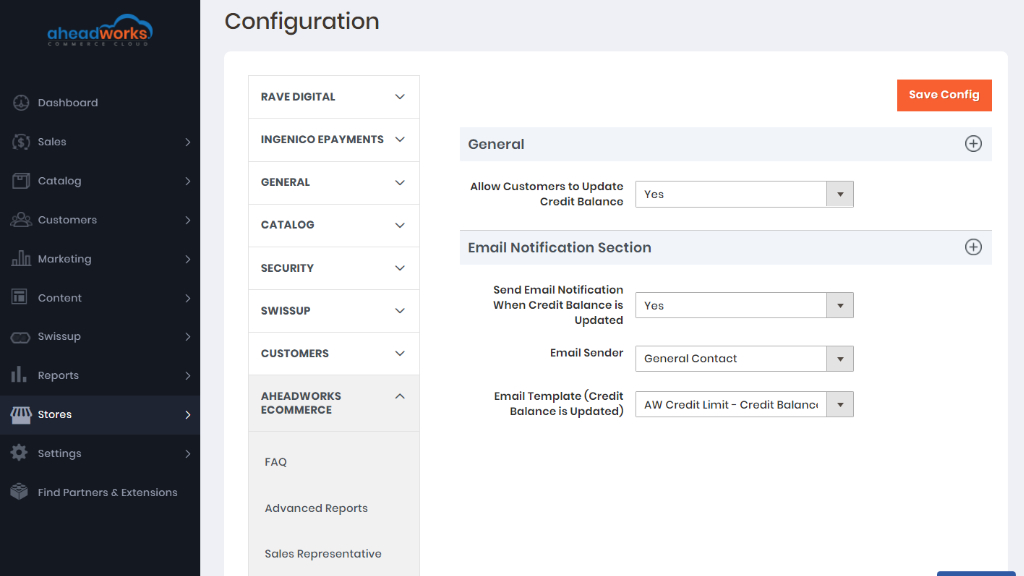
To configure Company Credit open the Stores → Configuration → Aheadworks Ecommerce → Credit Limit page. The page suggests setting up general configurations and parameters of email notifications to keep customers updated on changes to their credit balance.
Will my customers receive Email Notification?
Your customers will receive a reminder on an update to a credit balance. In the default template the text of the email contains an active link to take the customer to the My Account area on the storefront of the shop.
How do I enable Credit Payment?
To start working with the Credit Payment enable credit as a payment method on the Payment Methods page. Find the Credit Limit payment method in the given list and unfold the section for configuration
|
The amount of the credit limit set for a customer group will automatically be assigned to all customers within the group. |
|
The credit limit is set here in the base currency of the store. Customers who belong to a store view with a different currency will see the credit in the currency of the store view, recalculated automatically from the backend value. |
Once finished, click on the Save Config button at the top of the page to finalize the configuration. Though the newly configured parameters will be saved, the updates will come into force only on the next scheduled cron update. A corresponding message will appear to notify on thereof.
Can I assign Credit Limits for Individual Customers?
To assign/adjust a credit limit to a customer, go to the All Customers page, find the customer in the grid and click Edit to proceed to the Edit Customer page. This is where the Credit Limit tab will appear available in the Customer Information block.
|
To change the default value of the Credit Limit amount, untick the Use Config Value to the right of the Custom Credit Limit field, and type-in the new amount. This is when the Comment field gets enabled too. |
The Update Balance section is where you are able to make alterations to the customer's credit balance. This is where your account for the payback of the credit (when a bank transfer is received), amends or miscalculations.
|
Should there be a third-party accounting system integrated with your store, all updates to the credit amount made therein will be automatically copied via web API. Manual updates to the above fields will not be necessary then. |
|
The comment to purchase on credit will automatically feature the number of the purchase order in the above grid. The order number here is an active link to the corresponding page in Orders. |
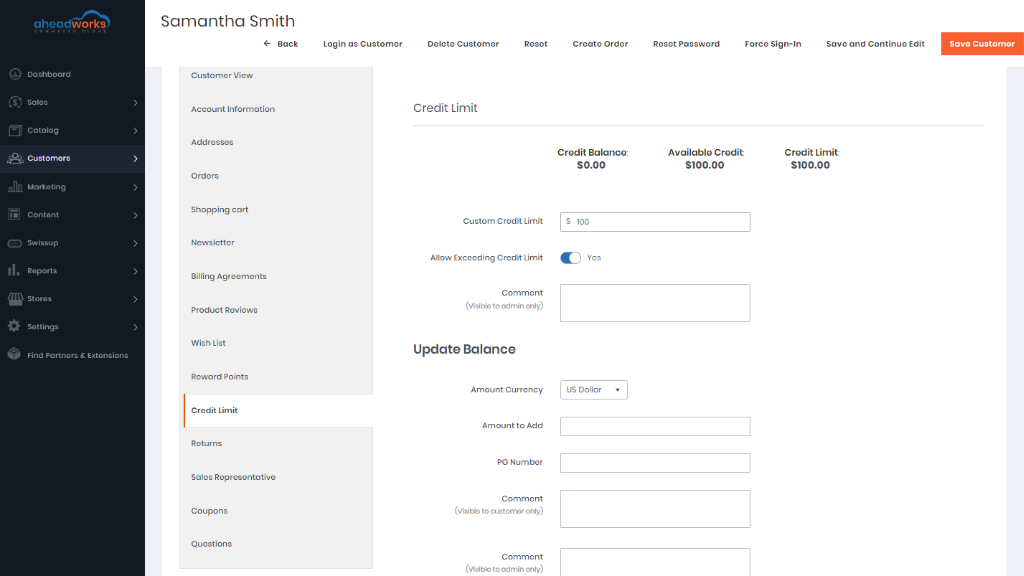
When the amendments are done, click the Save Customer button at the top of the page to save changes.
Can I assign Credit Limits for Companies?
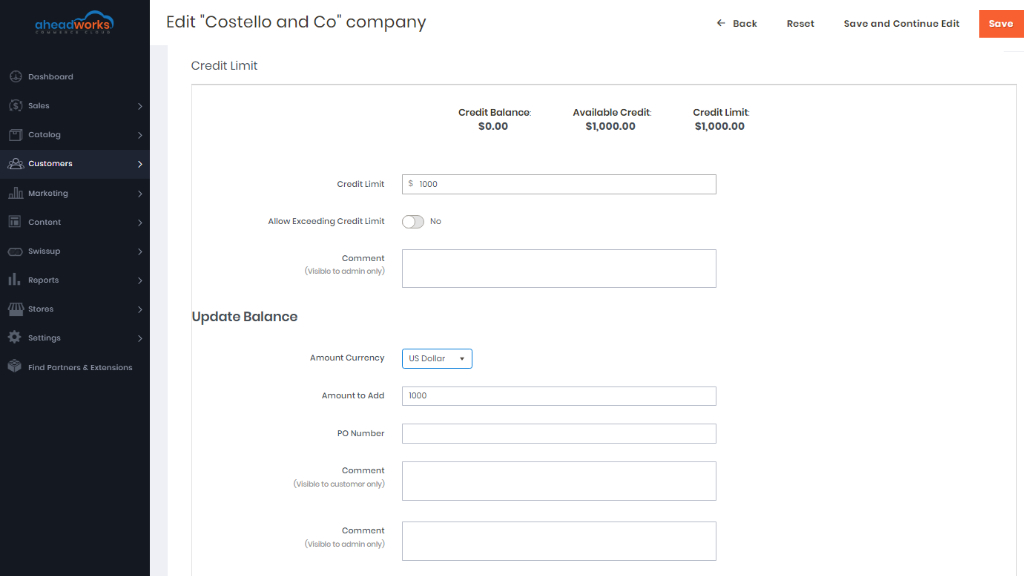
Go to the Companies page and select a company from the grid. Click on the Edit active link in the Action cell and proceed to the Edit Company page.
Find the blocks to manage the credit. The layout and the functionality will be the same as above. The only difference is that the Balance History grid will have an extra field - Updated By to tell the company member/customer to perform the transaction.
How to use B2B Company Credit at the Checkout?
The B2B Company Credit lists payment on credit as a payment method at checkout. Customers are to meet the following criteria to see Credit Limit/Company Credit as payment method on the list:
- the method is enabled on the store,
- the method is assigned to the customer (group, company),
- the total price of the cart is between the Maximum and Minimum Order Totals.
When Credit Limit is selected as a payment method and cart amount exceeds the credit limit, a message is displayed on the checkout “Available Credit will be exceeded by {Amount of available credit-order amount} with this order” (the setting Allow Exceeding Credit Limit should be turned on).
How do I manage credit transactions in customer profiles?
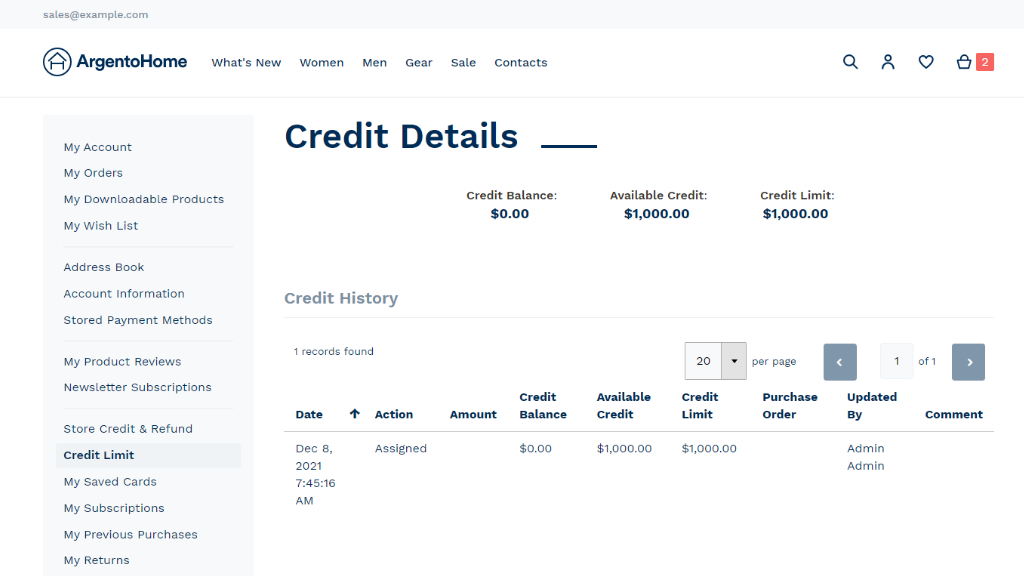
To view all credit transactions, customers proceed to their profile on the store Credit Limit page.
The page features a summary of the credit to estimate the balance of the credit, the credit sum available to the customer and the limit of the credit as set by the admin on the storefront.
In the Update the Balance section customers can input the amount into the Enter the amount field (Input is already pre-filled with the Outstanding Balance). There is a Make a payment button: customer will be redirected to the cart, which contains a product named Credit Update with the price of the entered value.
The product Credit Update is created on the backend automatically when setting Allow Customers to Update Credit Balance is set to Yes.
|
The product SKU is aw-cl-balance-unit. When it’s disabled, deleted, or its SKU is changed, customers won't be able to pay for the credit. |
Alongside the above, the page contains a grid to showcase the history of credit transactions of the customer.
|
The comment to purchase on credit will automatically feature the number of the purchase order in the above grid. The number here is an active link to the corresponding page in My Orders. |