
Customer Group Catalog Permissions
- Introducing Customer Group Catalog Permissions
- Configuring the module
- Setting up category permissions
- Setting up product permissions
- Setting up static page permissions
- Updating permissions
- Deleting permissions
What is the Customer Group Catalog Permissions module?
Customer Group Catalog Permissions is equipped with rich functionality in the backend and easy to implement functionality in the frontend. The backend includes both individual and mass settings. The individual ones allow an admin to set the permissions for each category, product and CMS page separately. Mass settings provide the opportunity to configure and delete permissions for the unlimited number of store catalog elements at once.
How do I configure the module?
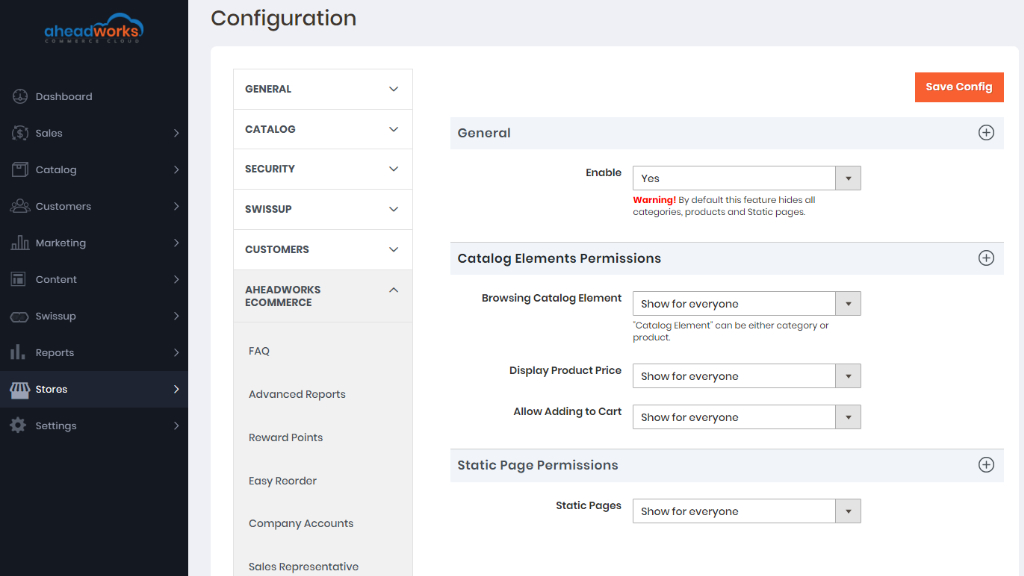
- The Configuration page of the module (Stores > Configuration > Aheadworks Ecommerce > Сustomer Group Catalog Permissions) includes three sections: General, Catalog Elements Permissions, and CMS Page Permissions.
- The General section of the General configuration page allows you to enable the module via choosing the option ‘Yes’.
- Catalog Elements Permissions - section of the Configuration page contains the following configuration options: Show for everyone, Hide from specified customer groups or Hide from everyone;
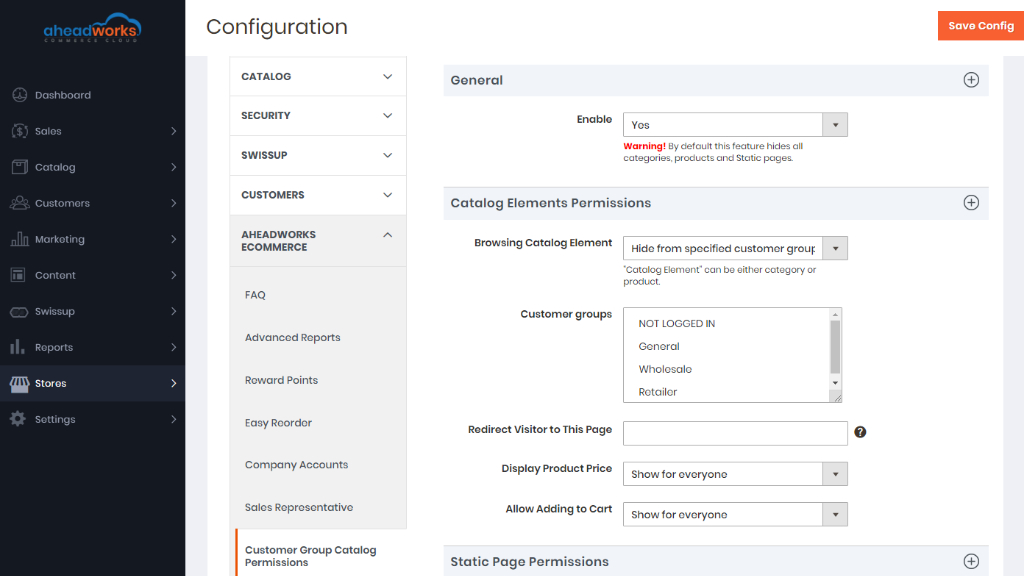
- Browsing Catalog Elements - the field to be used for the needed mode for the element visibility to be chosen: Show for everyone, Hide from specified customer groups or Hide from everyone;
- Customer Groups - the field to be used for you to choose the definite customer groups;
- Redirect Visitor to This Page - the field to be used for you to insert the URL page for redirection those customers who reach the hidden browsing catalog element;
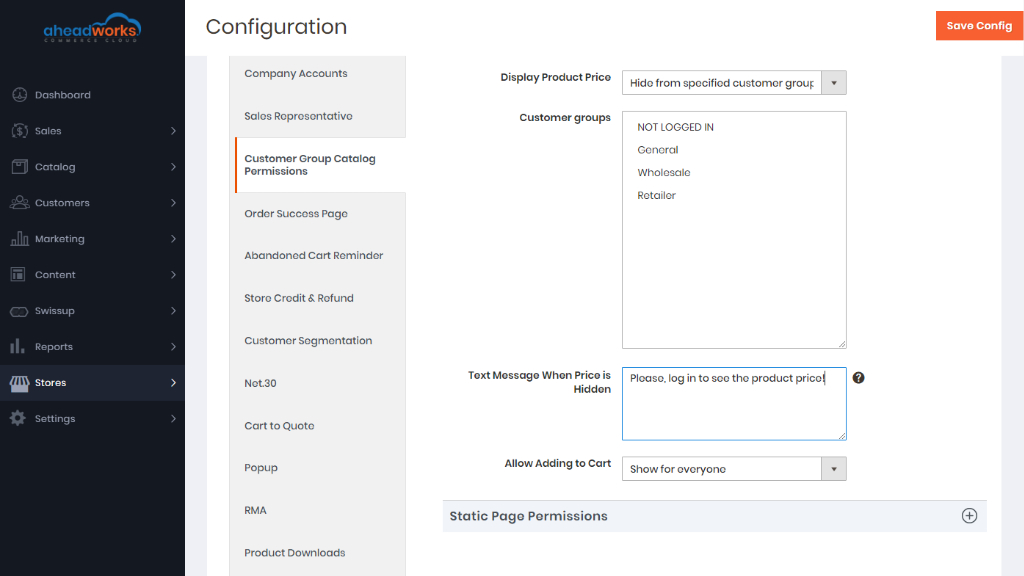
- Display Product Price - the field to be used for the needed mode for the price visibility to be chosen: Show for everyone, Hide from specified customer groups or Hide from everyone.
- Allow Adding to Cart - the field to be used for the needed mode for the add to cart button visibility to be chosen: Show for everyone, Hide from specified customer groups or Hide from everyone.
- Customer Groups - the field to be used for you to choose the definite customer groups;
- Text Message When Price Is Hidden - the field to be used for you to insert a customized text message using a ready-made HTML-code.
- Text Message When Button Add to Cart Is Hidden - the field to be used for you to insert a customized text message using a ready-made HTML-code.
- Static Pages - the field to be used for the needed mode for the CMS page visibility to be chosen: Show for everyone, Hide from specified customer groups or Hide from everyone.
Note that if you choose mode ‘Hide from specified customer groups’, the following fields appear:
- Customer Groups - the field to be used for you to choose the definite customer groups;
- Redirect Visitor to This Page - the field to be used for you to insert the URL page for redirection of those customers who reach the hidden CMS page. Finally, note that these settings are applied to the whole store catalog without dividing it into separate categories, products, or CMS pages. More to that, the settings configured are applied as the default unless other individual ones are specified.
How do I set up category permissions?
If you want to set the permissions for the individual category, you need to reach the New Permission fieldset. The fieldset is available through the following path: Сatalog → Categories → Needed Category chosen from the Category tree → Category Permissions by Aheadworks → New Permission and includes the following columns:
- Store View - the website which will be the application scope for the permissions specified;
- Customer Group - the particular customer group for which you want to apply the permissions specified;
- Category - contains the ‘Show’ or ‘Hide’ modes for you to choose;
- Product Price - contains the ‘Show’ or ‘Hide’ modes for you to choose;
- Add to Cart Button - contains the ‘Show’ or ‘Hide’ modes for you to choose.
How do I set up product permissions?
If you want to set the permissions for the individual product, you need to reach the New Permission grid. The fieldset is available through the following path: Products > Categories > Needed Product chosen from the Product grid > Edit > Product Permissions by Aheadworks > New Permission and includes the following columns:
- Store View - the website which will be the application scope for the permissions specified;
- Customer Group - the particular customer group for which you want to apply the permissions specified;
- Product - contains the ‘Show’ or ‘Hide’ modes for you to choose;
- Product Price - contains the ‘Show’ or ‘Hide’ modes for you to choose;
- Add to Cart Button - contains the ‘Show’ or ‘Hide’ modes for you to choose.
How do I set up static page permissions?
If you want to set the permissions for the individual CMS page, you need to reach the Static Page Permissions by Aheadworks fieldset. The grid is available through the following path: Content > Pages > Needed Page chosen from the Page grid > Select > Edit >Static Page Permissions by Aheadworks > and includes the following columns:
- Static Page - contains the ‘Show’ or ‘Hide’ modes for you to choose;
- Store View - the website which will be the application scope for the permissions specified;
- Customer Group - the particular customer group for which you want to apply the permissions specified.
How do I update permissions in bulk?
- Select Catalog Element Type - the step to be made for you to choose between Categories, Products, and Pages;
- Select Items - the step to be made for you to choose the items for which you want to set the permissions;
- Set Permissions - the step to be made for you to set the permissions for the items chosen.
|
Please note: the final step requires you to deal with the fieldset which is the similar to this one you see while configuring individual permission settings for category, product of CMS page. Finally, to update the permissions in bulk you need to click on the button 'Apply' or the button 'Back' to change the previous steps. |
How do I delete permissions in bulk?
If you need to delete permissions in bulk you need to reach the Delete Permissions in Bulk wizard. The wizard is available through the following path: Catalog > Delete Permissions in Bulk and includes the following steps:
- Select Catalog Element Type - the step to be made for you to choose between Categories, Products, and Pages;
- Select Items - the step to be made for you to choose the items for which you want to set the permissions.
To delete the permissions you need to click on the button 'Delete' or the button 'Back' to change the previous steps.
|
Note that this functionality is available not only from the main menu, but also on the page of the individual permission settings for categories - the Category Permissions by Aheadworks page, products - the Product Permissions by Aheadworks page, and CMS page - the CMS Page Permissions by Aheadworks page. |