
Enable Easy Reorder
- Introducing Easy Reorder
- Configuring Easy Reorder
- Using My Previous Purchases Grid
- Reordering Products
Easy Reorder facilitates a smooth and faultless customer experience in your store when it comes to reordering previously purchased products. With the Easy Reorder enabled on the store, there is no longer any need in keeping separate lists of previously purchased products, neither as carbon nor e-copies within third-party software. The list is organized in a registered customer's My Account area. There is no need in placing separate orders for each product but reorder in one go right from the My Previous Purchases grid.
What is an Easy Reorder?
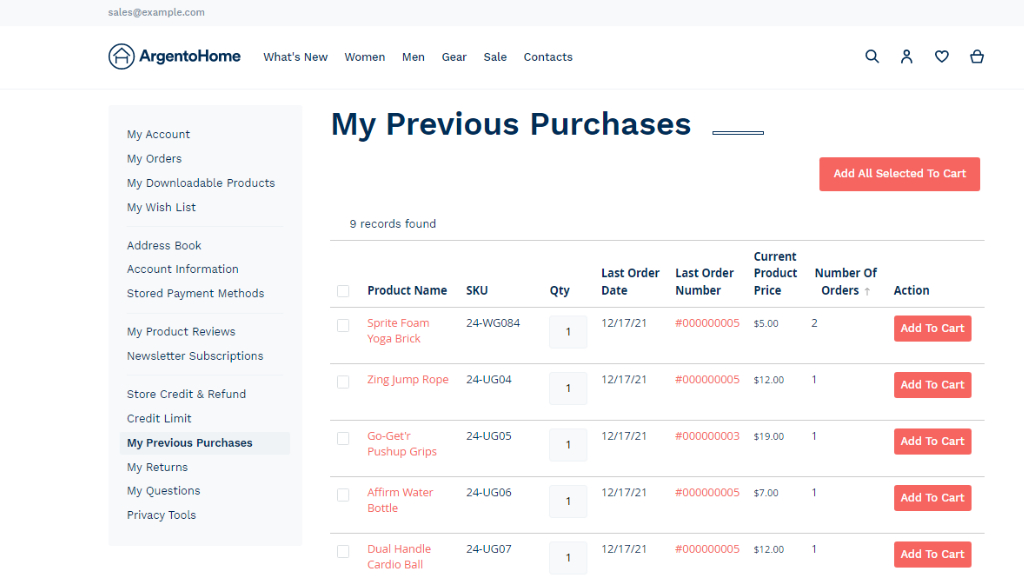
Easy Reorder populates the My Account area on the storefront with the My Recent Purchases tab which gives access to the list of previous purchases made by the customer. The list comes in the form of a sortable grid to allow browsing details of purchases, on-page editing of product quantity, redirecting to the product page or the page of My Orders, and finally adding selected products to the cart.
How do I configure Easy Reorder?
To configure the Easy Reorder follow Stores > Settings > Configuration > Aheadworks Ecommerce > Easy Reorder.
There is only one parameter for configuration on the settings page - Display Last Ordered Price Column.
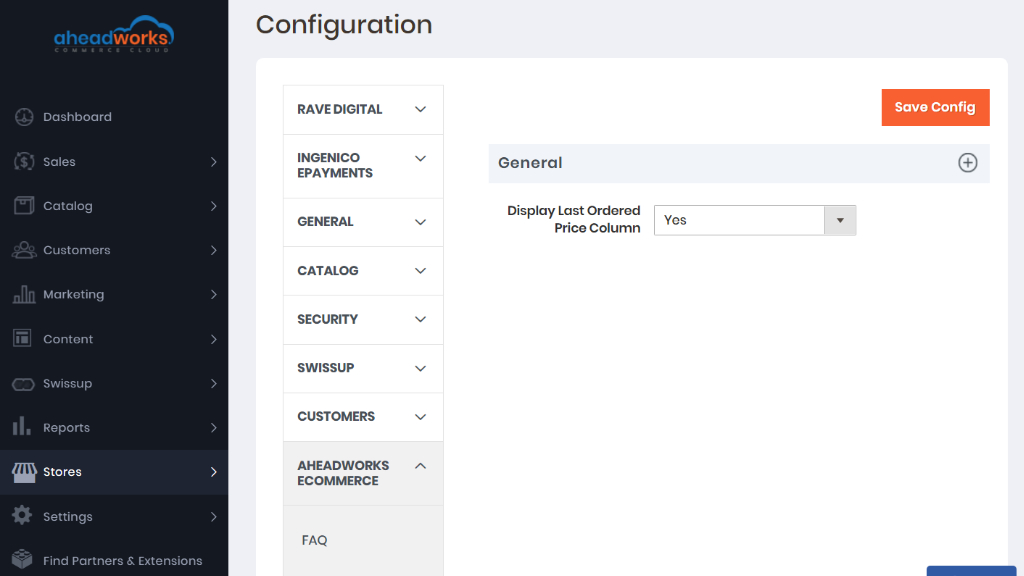
The Last Ordered Price Column will feature in the My Recent Purchases grid next to the Current Price column. Such neighborhoods presume instant comparison of prices. Disabling the former column makes sense when you cannot tell how often your customers reorder products, and thereby do not want them to change the decision to reorder when prices have increased noticeably.
How can customers use My Previous Purchases Grid?
In the My Account customer area on the storefront, customers can find the My Recent Purchases tab. The tab will show a page with a grid to aggregate the details of products purchased recently by the customer.
The My Previous Purchases grid will feature the following columns:
- Product Name - the name of the product (to be supported with two core parameters of the product, should the product be configurable);
- SKU - Stock Keeping Unit number/name;
- Quantity - by default - the quantity of the product purchased within the most recent purchase;
- Last Order Date - the date of the most recent purchase;
- Last Order Number - the number of the most recent order to contain the product;
- Last Ordered Price - the price of the product as per the most recent order;
- Current Product Price - the current price of the product;
- Number of Orders - the number of orders to contain the product;
- Action - the Add to Cart button.
|
The name of the product and the number of the order are active links leading to the Product Page and Order Page in the My Orders area, correspondingly. |
|
If the Multistore mode is enabled on the store, the prices in the grid will be shown in the currency of a store, as pre-configured on the backend. |
To sort the grid, click on the name of a column. By default on page load, the grid is sorted (in descending order) by the Number of Orders.
How can customers reorder products?
To select a product to be added to cart, tick the corresponding checkbox to the left of the product name. The header of the grid contains a checkbox for bulk-selection.
To add selected product(s) to cart click the corresponding Add to Cart button in the Actions column. Alternatively, add selected products in bulk with the help of the Add All Selected to Cart button which is available both on top and at the bottom of the grid.
To update the quantity of the product to be added to cart, alter the default quantity in the corresponding text-field of the Quantity column.
To choose a different configuration of the product to be added to cart, click on the name of the product. You will be redirected to the Product Page, where necessary configuration can be set. On clicking the Add to Cart button, the product will be added to cart, and you will be redirected back to the My Recent Purchases grid.
|
The Easy Reorder supports pagination. The default quantity of the products per page is 20. |
You will see the number of all previously purchased products on top of the My Recent Purchases grid, next to the Add All Selected to Cart button.