
Private Catalogs
- Introducing Private Catalogs
- Configuring Settings
- Using the Private Catalogs
- Assigning a Catalog to Company/User
What is the Private Catalogs Module?
Private Catalogs B2B is a great B2B solution for those merchants who need to create private catalogs with their own pricing and products for different customer groups/companies. Catalogs will feature certain categories, products, and pricing, which will be visible only for selected customer groups/companies. The module relies on the Catalog Group Catalog Permission module, in that the visibility of categories for a customer group is defined by category permissions for this customer group. Adding a product or a category to a private catalog enables appropriate category permissions for the customer groups linked to this private catalog.
How Do I Configure the Module?
First, you need to configure the general settings of Customer Group Catalog Permissions. To get access to the settings proceeds to Stores > Settings > Configuration > Aheadworks Ecommerce > Customer Group Catalog Permissions.
How do I use the Private Catalogs module?
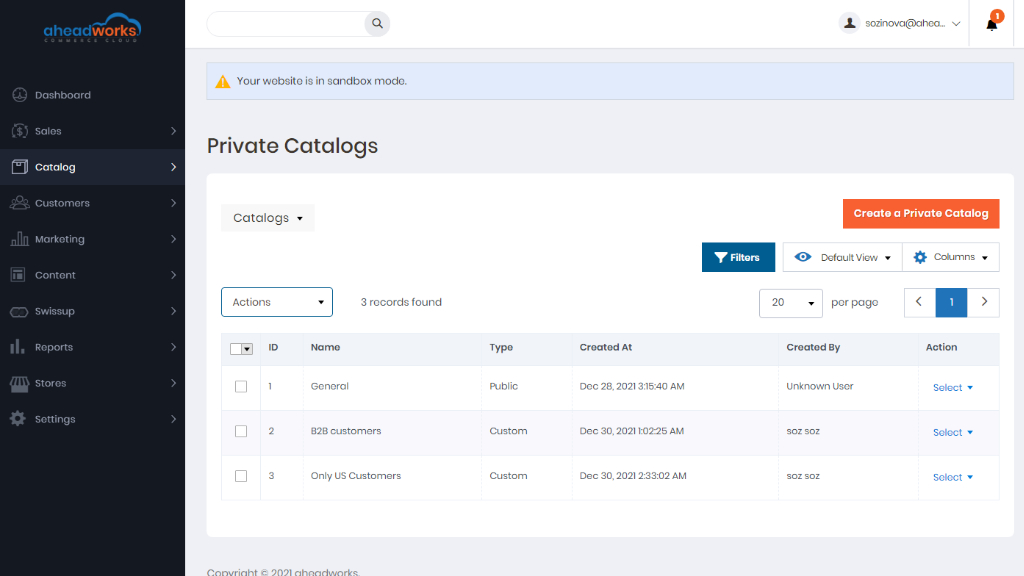
Go to the admin panel, select the Private Catalog menu Catalog>B2B Private Catalog by Aheadworks>Private Catalog. Click on Create a Private Catalog.
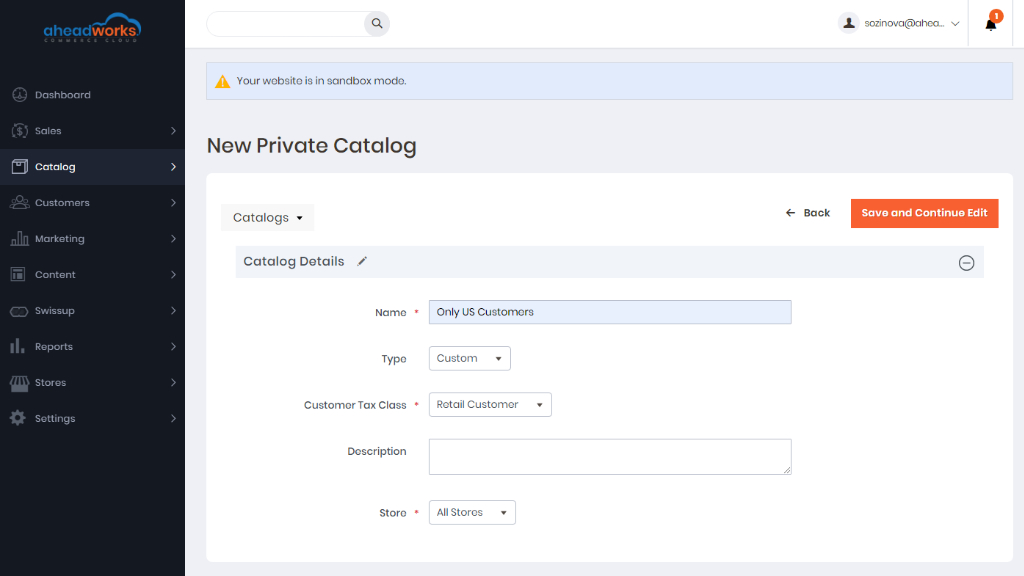
Enter the name of the catalog, choose the type (Custom or Public), and click on Save and Continue Edit.
|
From here you cannot change the private catalog type from public to custom. |
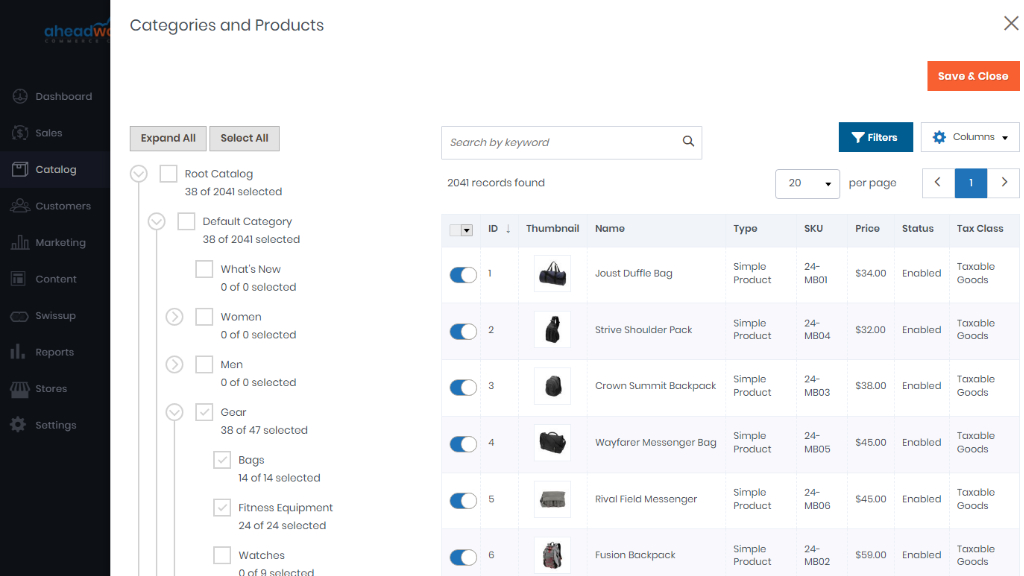
The next step is to configure the product to a private catalog. To configure the product(s) for the particular private catalog follow the Categories and Products section. Here click Configure Categories and Products and select products which you want to perform.
Select the Product(s) or select All and click Save.
After you can customize products click on the Configure Pricing button. On this page for Product(s) pricing, you can Set Discount or Adjust Fixed Price. Click on the Save button.
After all configuration with the private catalog click Save.
How Do I Assign a Catalog to Company/User?
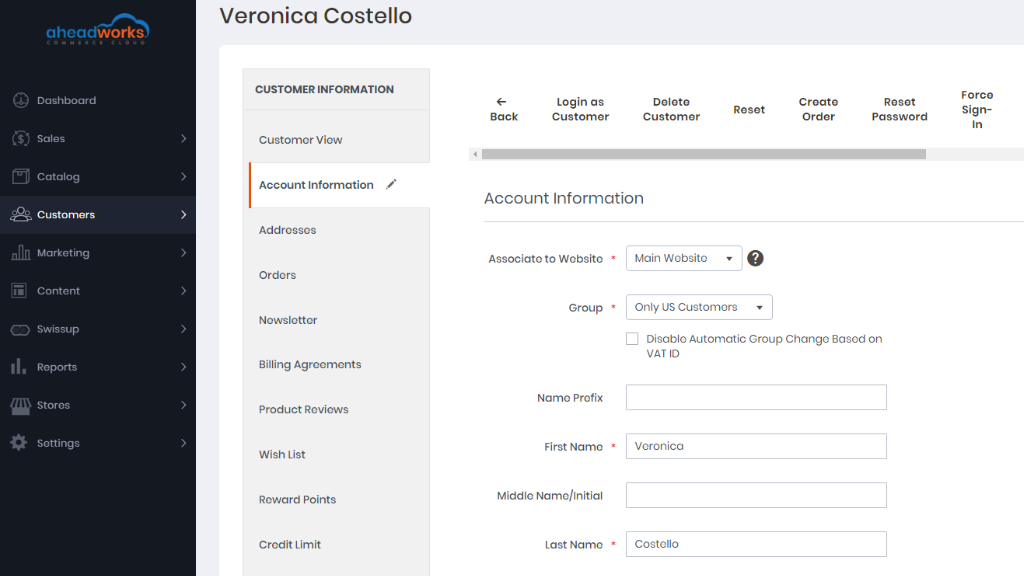
To assign the private catalog to a particular company/user, open the list of customers and select the particular company/user whom you want to edit. Open the Account Information tab and in the Group drop-down list select the required group. Below you can enable/disable Automatic Group Change Based on VAT ID.
Do not forget to Save all configurations.
|
Follow the same steps to assign the catalog to the companies.
|