
Allow customers to Order Quick
- Introducing Quick Order by SKU
- Configuring Quick Order by SKU
- Using Company Accounts and Quick Order together
- Using Quick Order and Cart to Quote together
- Quick Order by SKU on the storefront
- Adding SKUs
- Entering an individual SKU or product name
- Entering Multiple SKUs
- Importing SKUs
- Quick Order Product List
- Configuring products in a quick order product list
Quick Order by SKU is functionality to enable fast placing of orders by entering, uploading or importing product SKUs to a specially designated form on the Quick Order page. Products are collected into an order list, where configuring and updating the quantity of thereof is implemented. Lists are transferred into Cart with a single click on a button. The key features of the Quick Order by SKU can be shortlisted as follows: Quick Order list to receive multiple products by their SKUs; search autocomplete by SKU and Product Name; on-the-fly product configuration and quantity updating; SKU import with a CSV-file; customer group restriction to Quick Order.
What is a Quick Order by SKU?
Quick Order by SKU delivers enhanced B2B functionality into your stores. This functionality is disclosed in enabling customers to order products in bulk by suggesting their SKUs within a designated page. SKUs can be entered one by one, as a list or even imported from a CSV file. The enhancement to the B2B functionality reveals itself in the options to set up configurable products right on the Quick Order page or via a popup, and in specifying groups of customers eligible to the Quick Order by SKU method.
How do I configure Quick Order by SKU?
To configure the module proceeds to Stores → Settings → Configuration → Aheadworks Ecommerce → Quick Order by SKU.
To enable the Quick Order functionality on the store, select Yes (No by default) from the Enabled Quick Order drop-box.
To display Add to List Button select Yes (No by default) from the Display Add to List Button drop-box.
To display Quantity Input select Yes (No by default) from the Display Quantity Input drop-box.
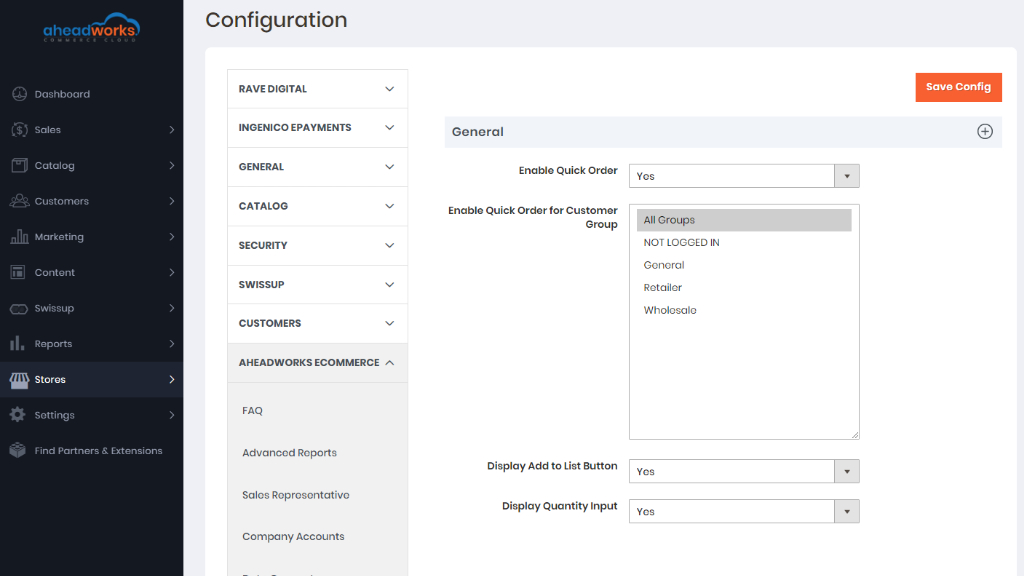
To add or delete customer groups, proceed to Customers → Customer Groups. Name customer groups meaningfully, so that you later have meaningful restrictions on the Quick Order functionality.
How can Company Accounts and Quick Order work together?
Company Accounts functionality allows creating company accounts and assigning them to selected customer groups. B2B clients, for example, shop differently from regular customers and thereby may need the Quick Order functionality more than the latter.
How to use Quick Order and Cart to Quote together?
Cart to Quote features the Request for Quote button on the Cart page when the Quick Order list is converted to Cart.
How does Quick Order by SKU work on the storefront?
When the Quick Order functionality is enabled in the settings on the backend, the Quick Order button will always be available on the storefront. Find it in the header of the page.
Clicking on the Quick Order button will take customers to the Quick Order page, where they will be able to arrange a list of products to be later converted into a Cart list and subsequently - order. It is the key idea of the Quick Order that to arrange a list of products for further bulk purchase, customers do not need to visit the page of each product, but to enter the SKUs on the Quick Order page.
The page shows the following functional blocks:
- Message Area: to notify on successful execution of operations;
- Enter SKU and Product Quantity block: one-by-one, in bulk, as imported from a CSV-file;
- Quick Order Product List: check-up and configure the added products, update product quantities and delete products to brush-up the list before transferring it to Cart.
How can I add SKUs?
The features of the Quick Order allow three options of adding SKUs: Individual SKU, Multiple SKUs, Import SKUs. Make use of the Enter SKU and Product Quantity block (as shown above) to populate the Quick Order list with products.
All three options are always available on the Quick Order page. By default, on load of the page the Individual SKU option is active. The other two options are inactive, and accessible via the links on the right to the active one. Customers can swap between the options by clicking the corresponding link. Activating an option will feature its functionality on the left of the Enter SKU and Product Quantity block and will deactivate the precedent option into a link.
How can I enter an individual SKU or product name?
In addition to the Add to List button the block features two text fields:
- Enter Individual SKU or Product Name (mandatory) - to receive a text-line that can be interpreted either as an SKU or product name;
- Qty - to receive a whole digital to tell the quantity of the product to be added to the list (1 by default).
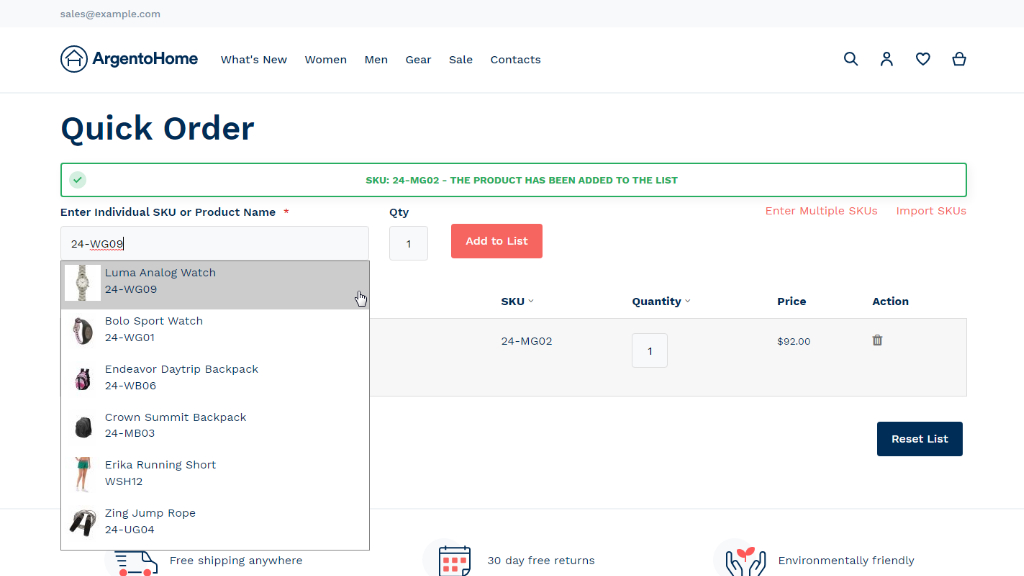
Search autocomplete is implemented when individual SKUs or product names are entered. It takes three symbols ('space' included) to appear in the Enter Individual SKU or Product Name field to trigger search autocomplete. A drop-down list with products matching the search query will appear below the field. Only the products enabled and visible in the store will be displayed on the list. Customers can select only one product from the drop-down at a time.
To add the chosen product to the Quick Order list, click the Add to List button. If a customer tries to add products that don’t exist, an error message appears in the Message area: “SKU isn’t found.”
How to Enter Multiple SKUs?
This is where the Admin can specify one or more SKUs separated by paragraph. If there are a lot of SKUs which do not fit the input text-box, scrolling will appear. When SKUs are specified, customers click the Add to List button to have SKUs displayed in the Quick Order list as records. Two scenarios are then possible:
A success message will appear in the Message area: “{number} item(s) are added to the list”;
If there are no existing SKUs or a customer makes a mistake in the entered text-line, an error message will appear: “SKU’s are not found. Please, check entered data”.
NOTE
It is not possible to indicate the quantity of a product within the Enter Multiple SKUs text box. Thereby, products will be added to the Quick Order list in quantity = '1'. This can later be changed within the Quick Order Product List functionality.
How can I import SKUs?
The Import SKUs option will come as set of the following:
- A hint on the file and its content format;
- An active link to a sample file - Download Sample;
- and a button to upload a file - Choose File.
The files to import SKUs from are to be in the *.csv format only. The data is to be laid out into a one-column format: “SKU”, “QTY”.
It is important to note that only one file can be uploaded at a time. The products from subsequent uploads will be added to the same Quick Order list.
|
When a file of the wrong type is uploaded, an error pop-up notifies of failure to do so. Files with incorrect data layout will not be read properly. Relevant notification will appear in the Message area: "{SKU} - The product that was requested does not exist. Verify the product and try again." Only those data entries of the correct layout will be processed by the features, relevant products will be added to the Quick Order list. |
When a CSV-file is attached, click the Add to List button to add products to the Quick Order list.
|
Are products of the same SKU's merged in the Quick Order list? Customers are able to populate a quick order list with the help of all the three options. The logic of the Quick Order understands the same SKU's as separate entries, and does not merge products on the Quick Order list if they are the same. |
What is a Quick Order Product List?
The Quick Order list features the products that match the SKUs added via one of the previously described options.
The list supports sort order (click the name of the column) and pagination (20 items a page).
To add products to cart, click on the Add to Cart button on the left below the list. Customers will be redirected to the Cart page.
To delete all product entries from the list, click on the Reset List button on the right. The page will reload. Customers will stay on the page.
How do I configure products in a quick order product list?
By far, configurable products are to be configured before being added to Cart. Two scenarios of thereof are possible within the Quick Order, depending on the option chosen to add products:
1) When a configurable product is added with the help of the Enter Individual SKU or Product Name option, a pop-up will appear prompting customers to configure the product before it is added to the Quick Order list.
The popup will feature an image of the product and the categories of the configurable parameters (mandatory fields). If 'X' in the top right of the pop-up is clicked on, the pop-up is closed, no configuration is saved and no product is added to the list. When the Confirm button at the bottom of the popup is clicked on, the product is added to the Quick Order list.
Customers will be able to see the chosen configuration in the Product Name part of the list record. This is where the Configure button will also get located. Clicking on it will call forth the pop-up to alter the configuration.
|
The pop-up will feature most options of product configuration but for those of the following types of an attribute:
|
2) When configurable products happen to be among those added with the help of the “Enter Multiple SKU’s” or Import SKUs options, the whole bulk of products is added to the Quick Order list, and no pop-up appears.
The Product Name part of the record, in this case, will feature a hint to configure the item, as well as the Configure button below it. On clicking the button the pop-up will show up, offering options for configuration.
Customers are not able to add to Cart configurable products without configuration. Even when the Add to Cart button has been clicked on, and the Quick Order list has been converted into Cart, the latter will miss on the non-configured products. In this case, an error message will be displayed in Cart: "SKU: {number of the SKU requires configuration} You need to choose options for your item(s)”. Customers will have to get back to their Quick Order lists. They will now feature only those products which have not been configured. Customers will be able to configure the products and add them to Cart. No previously transferred to Cart data will get lost.
|
When the Quick Order list is converted into Cart, products of the same SKU's, which the former contained separately, are merged in Cart. At the same time, when Cart contains configurable child-products added therein via Product/Catalog pages, they are not merged with those of the same SKU's added via the Quick Order list. |