
Setting Sales Representatives
- What is a Sales Representative?
- How Do I Create Sales Representatives?
- How Do I Assign a Sales Representative to Order?
- How Do I Assign a Sales Representative to a Customer?
- How Do I Assign a Sales Representative to Quote?
- How Does a Sales Representative Work at the Frontend?
- What Emails Will Clients Receive?
The Sales Representative enables the role of a personal manager in a store. This functionality allows creating sales representatives and assigning them to customer groups and individual customers, companies.
What is a Sales Representative?
Sales Representative tool assigns personal managers to certain orders, customers, and customer groups to improve customer service and sell products more effectively.
How Do I Create Sales Representatives?
Start creating a sales representative by adding a new user role in System > Permissions > User Roles. Configure Role Info and Role Resources.
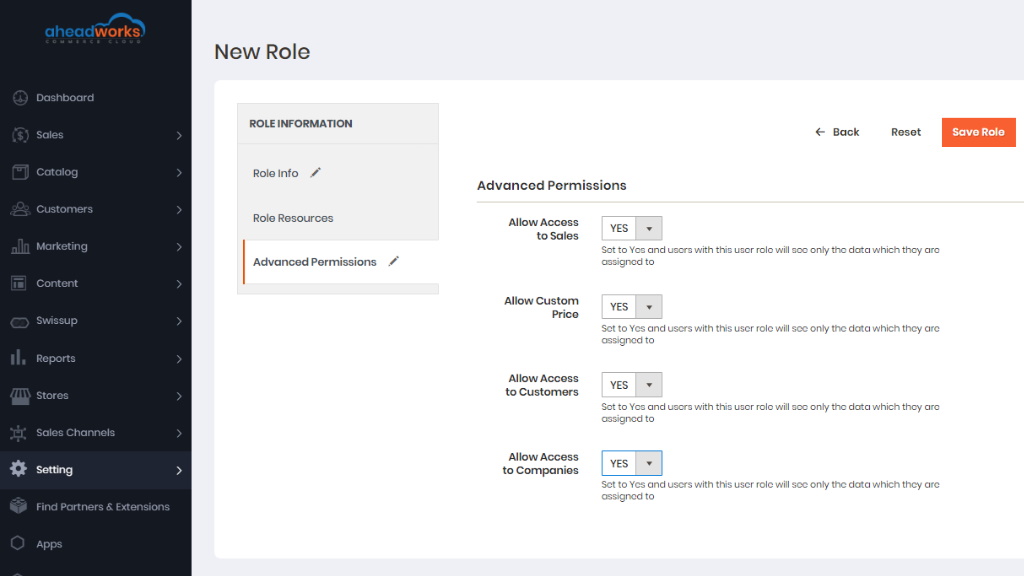
Then, go to the Advanced Permissions tab. Here you can specify if the user will have access to Sales, Customers, and Custom Price. Do that with the help of the Allow Access to Sales, Allow Customer Price, and Allow Access to Customers selectors.
- If you choose Yes in the Access to Sales dropdown, this user sees and manages only those sales resources that are assigned to him;
- If you choose Yes in the Access to Customers dropdown, this user sees and manages only those customers resources that are assigned to him;
- If you choose No in the Allow Custom Price dropdown, the Custom Price checkbox is unavailable for this user while creating order in Admin;
- If you choose Yes in the Allow Access to Companies dropdown, this user role will allow users to access data in the Companies grid.
|
Remember to select operations for the user role in the Role Resources tab. |
Next, add a new user in System > Permissions > User Roles. Enter all the necessary User Info and choose User Role.
Any input field can be left empty if there is no need to display such user information for customers.
How Do I Assign a Sales Representative to Order?
Sales managers can be assigned to orders manually on the Sales > Orders > Order View page. In the dropdown with the list of active and inactive sales managers, you can choose a user from the list to the order or choose ‘Not Assigned’ value to leave the order without any sales representative.
After you need to click the Save button near the dropdown to save the changes. If a sales representative has been chosen for an order, a confirmation email with the order details will be sent to this sales representative.
How Do I Assign a Sales Representative to a Customer?
What is more, a dedicated sales representative can be chosen for a customer in Customers → All Customers. There are two options to do so:
- Choose a sales representative in the corresponding column of the Customers Grid.
- Choose a sales representative in the individual tab on the Customer Information page.
Let’s look at the Customer Grid first.
If you assign a sales representative in the Customer grid, you just need to click on the row of a particular customer. As soon as the quick editing mode has been activated, a dropdown with the list of all sales representatives appears in the corresponding column. The Not Assigned value is displayed here too, in case a sales representative has to be unassigned from any customer.
Click Save to save all the changes in the grid. Click Cancel to abandon any changes.
Assigning sales representatives to customers in bulk is also applicable. You just need to select customers in the first column via checkbox and choose Edit in the Actions dropdown. Having chosen the right option, click Apply and Save Edits above the grid to save the changes.
The second option - the Sales Representative tab on the Customer Information page.
Here you see the same dropdown as in the Customer grid and on the Order View page.
As long as a customer has an appointed sales representative, his/her orders are assigned to this sales representative. If a customer has no appointed sales representative, his/her orders are assigned to the sales representative specified for his/her customer group.
How Do I Assign a Sales Representative to Quote?
It is able to assign Sales Representatives to quotes if in the Admin User Quote is Assigned to option is chosen Sales Representative. Sales representatives can be appointed to quotes automatically in compliance with the customers belonging to a customer group, or manually and individually to each quote. By assigning quotes to sales representatives the Admin can demarcate access for these users to the data on the quotes.
How Does a Sales Representative Work at the Frontend?
The sales manager’s contact information is available for signed-in customers on the Order View page. There is a special block with the data about a sales representative specified in the Additional Information tab on the backend:
- sales manager’s name;
- email;
- phone number;
- additional information;
- photo.
What Emails Will Clients Receive?
Your customers will see information about sales representatives. It can be added to the order confirmation email for guests and logged-in customers. All you need to do is to insert the Sales Representative Information variable while creating a new order confirmation email template.