
Domain Setting
Domain Settings
|
Please note, customers’ actions required. Since the domain is purchased by customers themselves it is up for the customer to set up DNS for the domain. |
Once you reach the stage when you are ready to go live with your store please contact our support team, or right away submit a domain change request from the admin panel. Go to Settings > Domains > Add a Domain to make a request. Next “Add a domain” ticket will be created and sent to our support team.
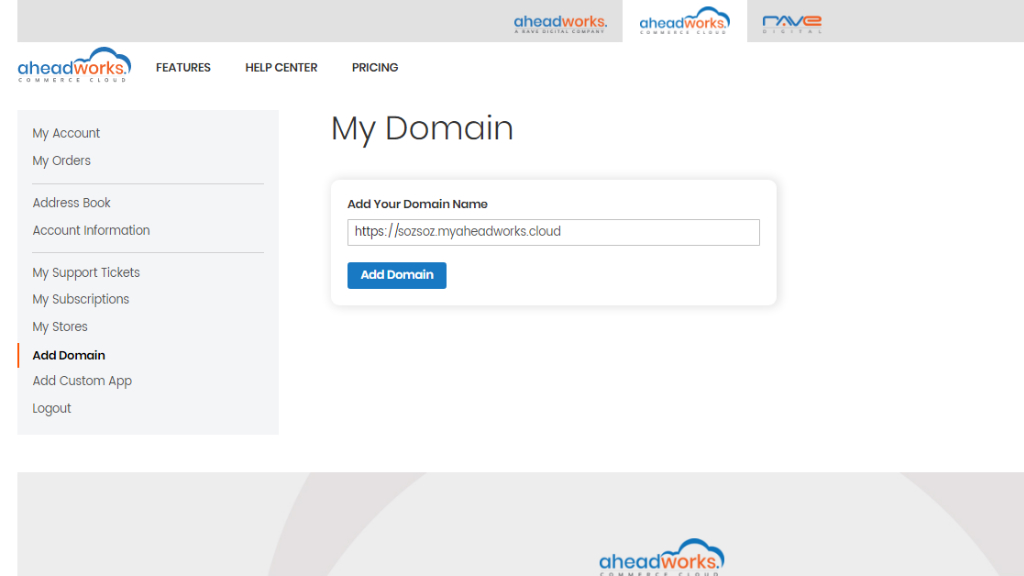
|
To be able to change your domain and go live you need to subscribe to one of the subscription plans we offer and login into the admin panel. |
Our technical support specialists will create full copy of your sandbox store for production purposes. At this point you will have two different environments: sandbox and production. The production environment will be provisioned with technical characteristics as per plan of your choice.
At this stage we recommend you make sure your production store is completely ready to accept its first shoppers:
- Payment gateways are configured to production mode
- Shipping methods are all set up
Notice that by default, your online store has a xxx.myaheadworks.cloud URL when you sign up for AW Commerce Cloud - and this will now be the URL of your sandbox environment. The web address that is displayed to your customers when visiting your production instance will be the custom domain that you request, such as my-store-name.com. To build trust with your customers use a domain that matches your brand name.
|
It is allowed to change the domain only once and only for production instance. |
Please note: our team will do everything on the hosting side to set up the domain name of your choice, but since the domain purchase is done by the customer himself, it is up to customer to request their domain name registrar to make a DNS record, to point the domain to the IP that our support team will provide. More details on it in the DNS management section below.
All these steps will take from a few hours to days, it all depends on how fast it will take for you to get ready with your production store. Before changing the Domain you need to know about the consequences and how domain change will affect your SEO.
When you change your domain to a new one:
- the old domain will no longer be accessible;
- search engines will receive 404 errors
To minimize the effect that may have, you redirect the old domain to your new one. Redirecting from the old domain to the new registered will cause all traffic to point to the registrar.
Managing DNS
- Our support team provides customer with an IP address of customer’s store
- Customer purchases his domain from a domain provider (Cloudflare, cloudns, godaddy, etc)
- Now you can use the editor provided by the service chosen in p.2 to add DNS records so the domain name can be resolved to our IP address from p.1
We suggest customers refer to their domain provider for detailed instructions. Here are the popular host providers, so here you can find the general information about managing DNS:
- Changing your nameservers at DreamHost - DreamHost
- DNS Management: How to Add, Edit, or Delete DNS Entries - BlueHost
- DNS Management: How to Add, Edit, and Delete DNS Records - Domain.com
- Change nameservers for my domains - GoDaddy
- Manage DNS records - GoDaddy
After go live
Now you have two instances:
- Sandbox on base plan - so you can test all configurations and environment changes and see how your store will perform.
- Production on the plan of your choice - this one is accessible to the public by following your custom URL.