Order Success Page
- What is the Order Success Page?
- How do I configure the layout?
- How do I configure the module from the backend?
- How do I create rules?
What is the Order Success Page?
The Order Success Page module contains the blocks that can be divided into two types: Standard (see General Settings section) and Rule-based (see Rule section). Standard blocks are always displayed for all customers, while rule-based are shown only if the order complies with rule settings.
How Do I Configure the Layout?
The module offers 4 positions for the notification blocks:
- Page Top
- Page Bottom
- Content - Left Column
- Content - Right Column
Some blocks like “Order Summary” and “Cross-Sell” can only be set to Page Top or Page Bottom positions, because of their size.
By default, the blocks are placed the following way:
|
Page Top |
|
Content - Left Column | Content - Right Column |
|
Page Bottom |
As you can see, if you would like to use a single-column layout, you can use only Page Top and Page Bottom positions.
To set an order of the Blocks, use the Priority field. This setting respects the layout position, so it is very easy to set the right order in every position of the page.
How Do I Configure the Module From the Backend?
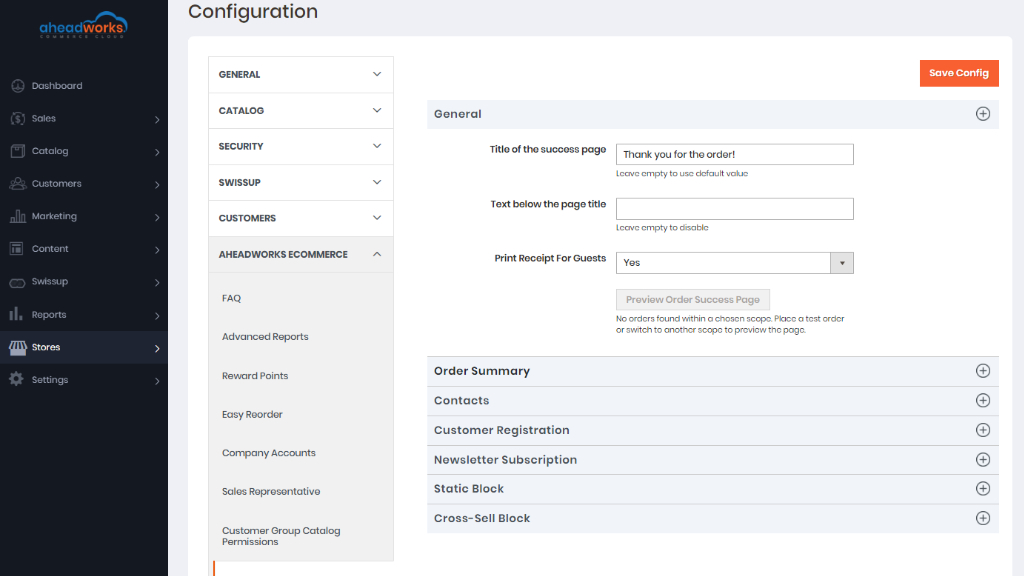
General Settings block contains:
- Title of the success page is an h1 tag, the main title of the page;
- Text below the page title is an optional text you may want to display;
- Print Receipt For Guests controls whether guests can print their order Receipt from the Order Success Page or not.
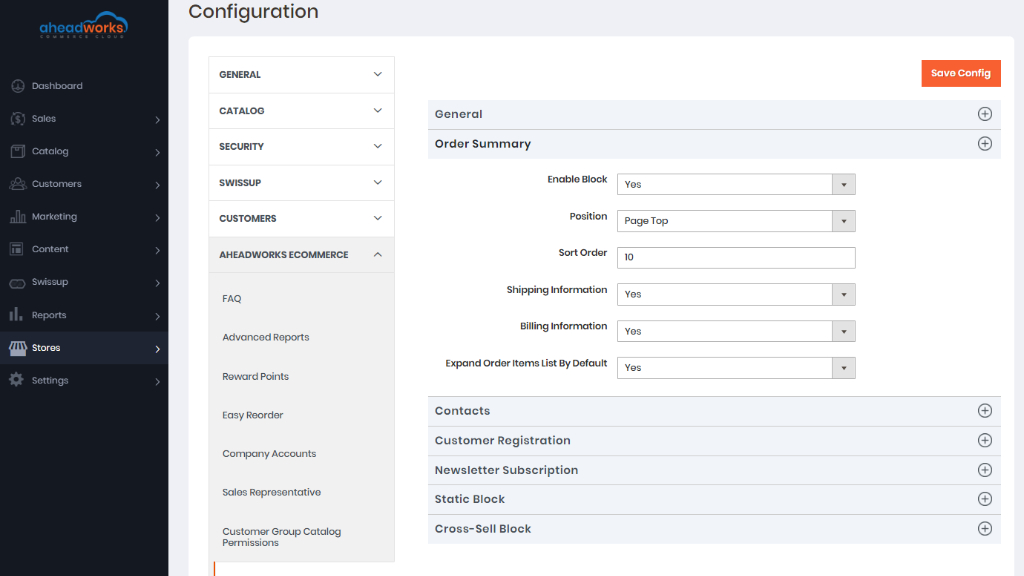
Order Summary settings:
- Enable Block to place the Order Summary block to the Order Success Page;
- Position to choose between top and bottom positions of this block;
- Sort Order to assign the block priority;
- Shipping Information to add the shipping details to this block;
- Billing Information to enable the billing data displaying;
- Expand Order Items List By Default to allow/disallow this option.
|
Order Summary block is not displayed when the Customer uses "Check Out with Multiple Addresses" at Checkout. |
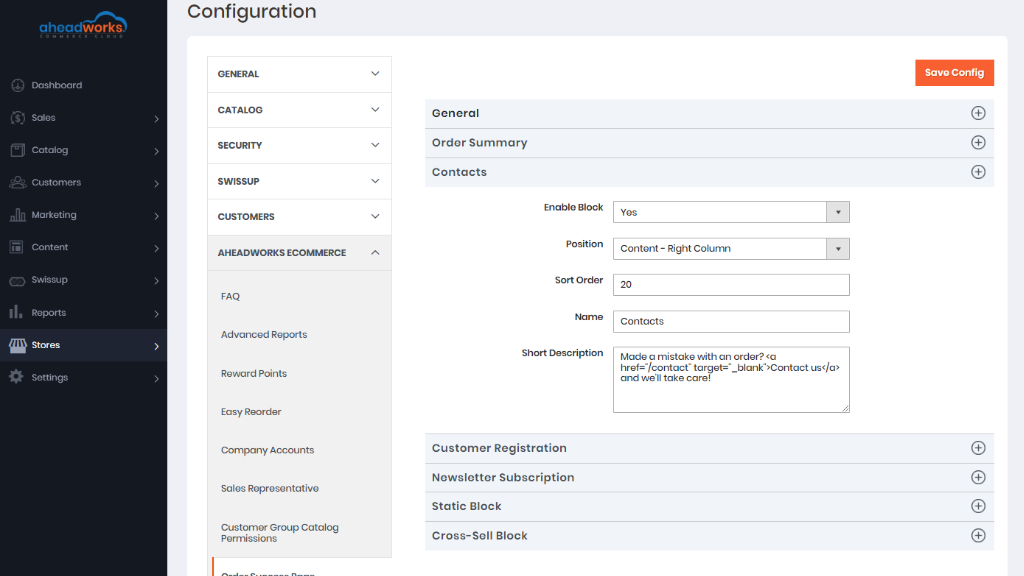
Contacts block:
- Enable Block to place the Contacts block to the Order Success Page;
- Position to choose between top/bottom/left/right positions of this block;
- Sort Order to assign the block priority;
- Name to customize the title of this block;
- Short Description to create the text message relevant to your intends.
|
Note that while this block is intended for showing a link to your 'Contact us' page, generally, you can use it for any purpose, when you just need to show some text to all of your customers. |
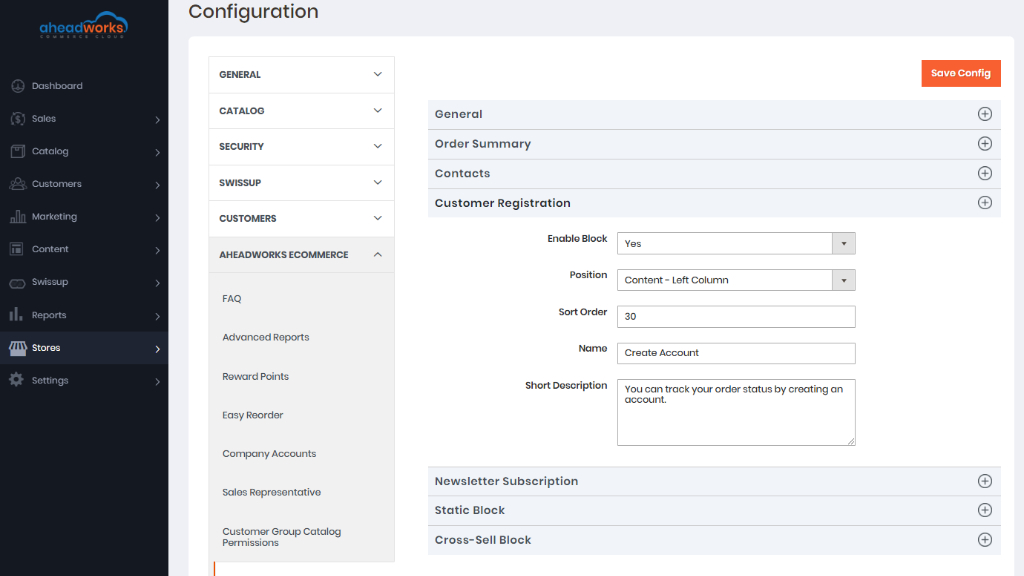
Customer Registration settings:
- Enable Block to display the Checkout Registration block on the Order Success Page;
- Position to choose between top/bottom/left/right positions of this block;
- Sort Order to assign the block priority;
- Name to create a special title of this block;
- Short Description to type the text message which encourages customers to create the account.
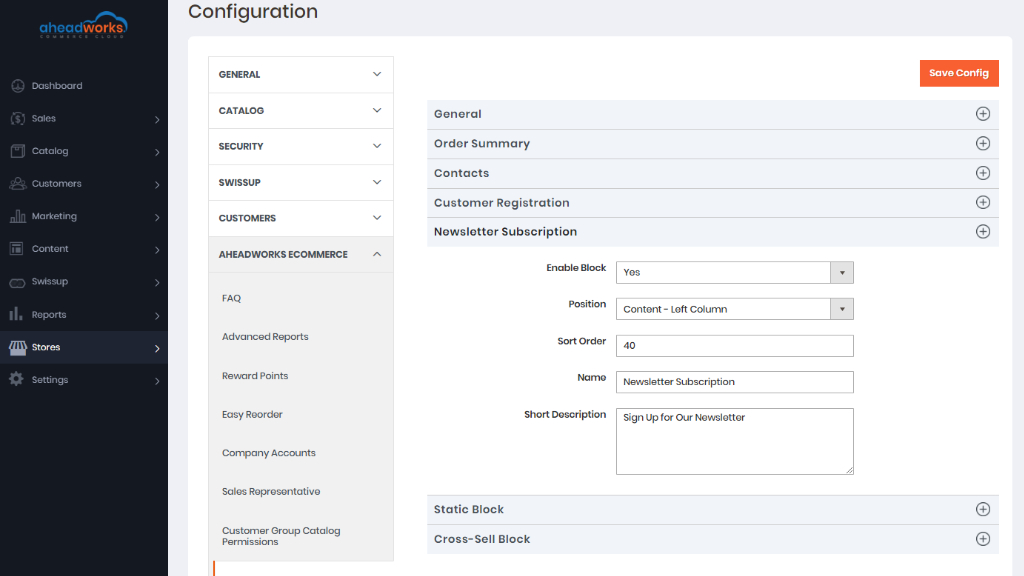
Newsletter Subscription
- Enable Block to allow customers to subscribe to the newsletter;
- Position to choose between top/bottom/left/right positions of this block;
- Sort Order to assign the block priority;
- Name to create a special title of this block;
- Short Description for the message which invites shoppers to subscribe to the newsletter.
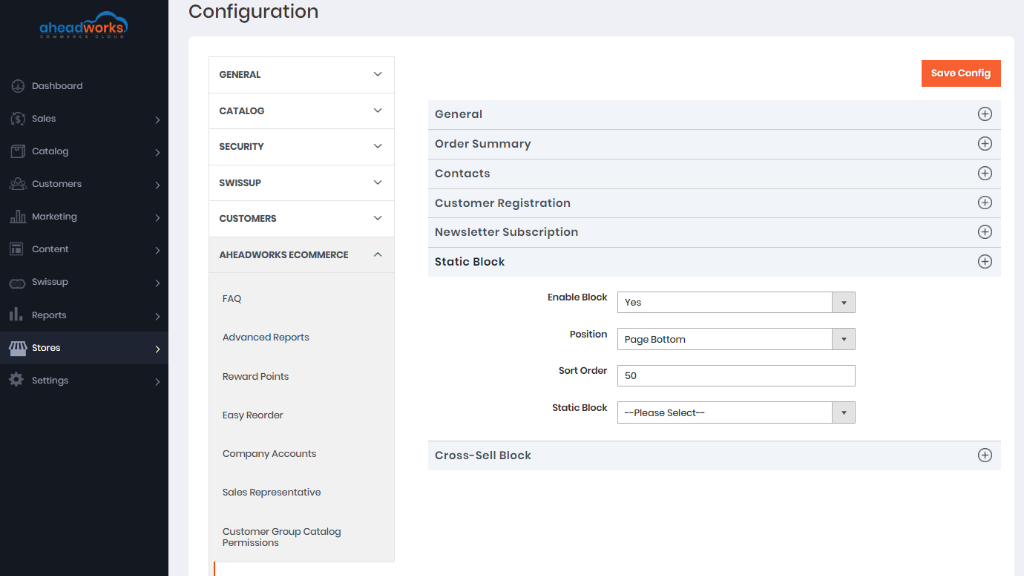
Static Block
- Enable Block to place any block on your order success page;
- Position to choose between top/bottom/left/right positions of this block;
- Sort Order to assign the block priority;
- Static Block to choose the block you need to display additionally based on your primary goals.
|
Note that this block is visible for all customers by default. Use the Rules for more targeted content. |
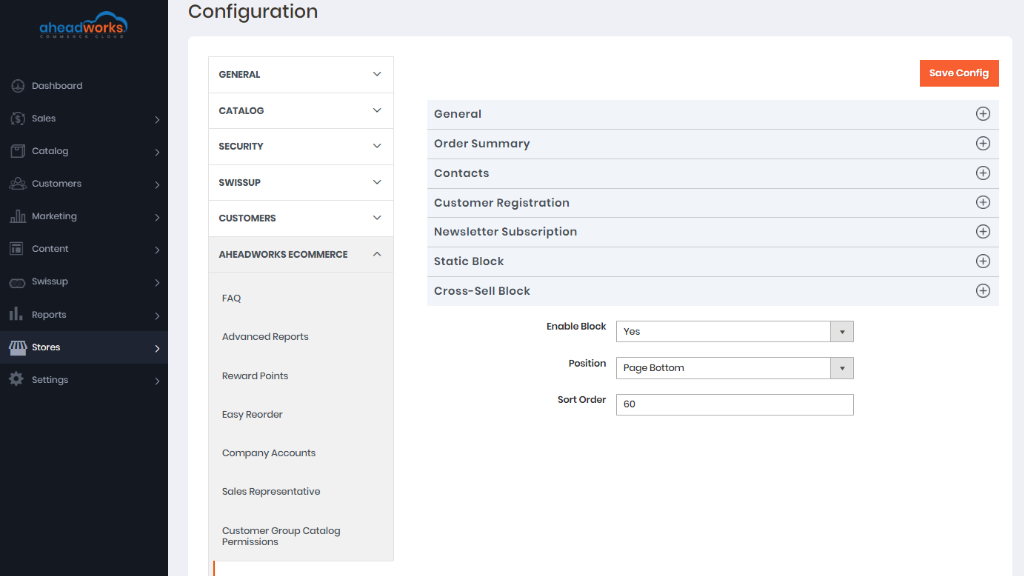
Cross-sell block configurations:
- Enable Block to demonstrate native cross-sells configured in the settings of the definite products;
- Position to choose between page top/bottom position;
- Sort Order to assign the block priority.
How Do I Create Rules?
Find the Rules section following the pass Content > Order Success Page by Aheadworks > Rules. Here you can see a standard grid with the list of the rules. The rules can be filtered and enabled/disabled/deleted in bulk.
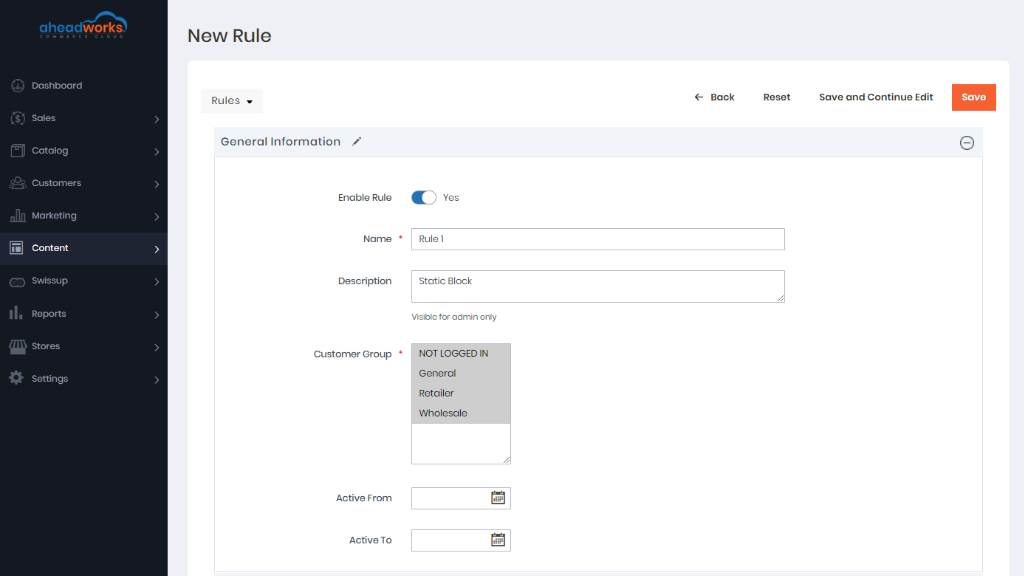
To create the new rule click on the Add Rule button. First, you need to set General Information.
- Enable Rule to make the rule active;
- Name the Rule to easily find and manage the rules created;
- Description contains a summary of the rule functionality;
- Customer Group includes different customer segments for you to choose from;
- Active From / Active To options allow scheduling the rule duration.
Each rule can display one of the following block types:
- Text / Html - a basic type of the block; the content is configured right in the rule, in the WYSIWYG editor;
- Static block - a static block created beforehand in Content-> Elements-> Blocks;
- FAQ Category - a list of articles from a selected FAQ category.
- Blog Category - a list of blog posts from a selected Blog category.
a) If you want to add a static block
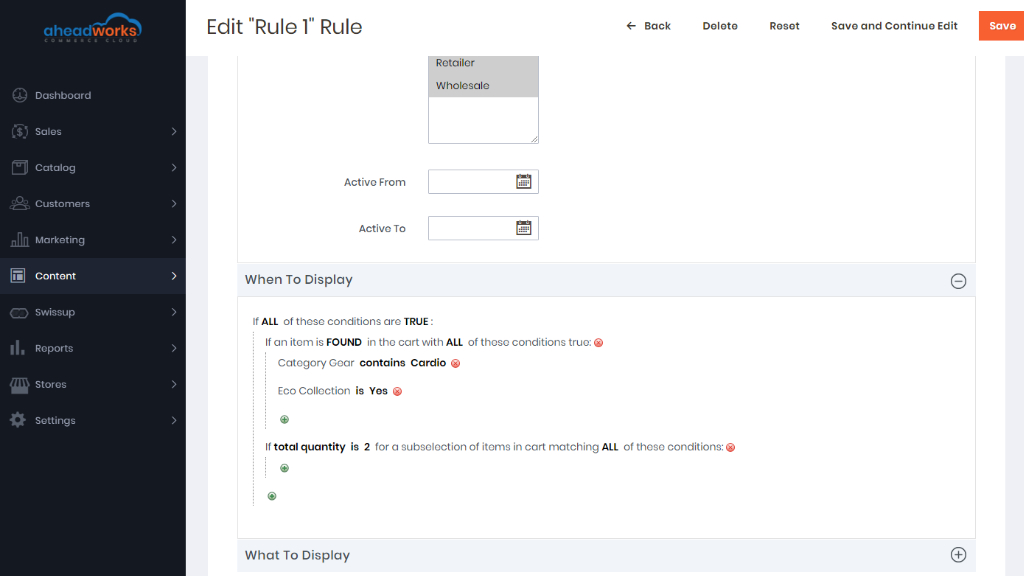
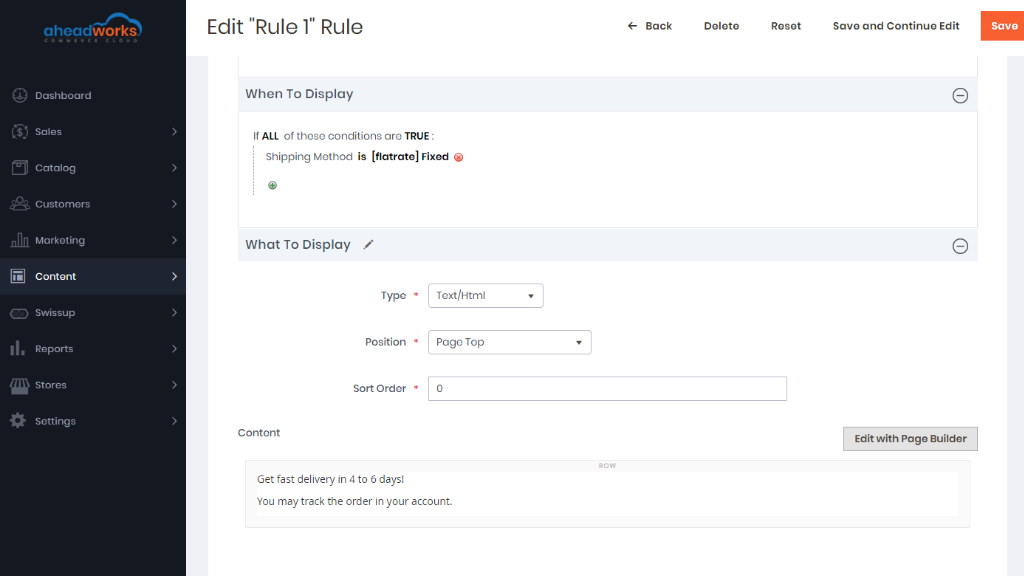
b) If you want to display a text message when a customer chooses a certain shipping method