Simple Bundle Product
- What is the Simple Bundle Product Module?
- How Does Stock Calculation Logic Work?
- How Do I Configure the Module?
- How Do I Create a Simple Bundle Product?
- How Do I Use Bundle Conversion?
- How Do I Add Bundles to New Orders?
- How Do I Use Bundle Products on the Storefront?
What is the Simple Bundle Product Module?
The Simple Bundle Product module makes bundle installation for admins and their purchasing for customers as simple as possible by introducing the following features:
- Excessive bundle setting options are hidden;
- Bundles can be added to backend orders;
- The bundle customization step is eliminated.
The module adds the new option to the ‘New Product’ page for bundle products. Store admins can instantly switch to a simplified view with fewer settings compared to the native functionality.
In essence, an admin needs to add bundle items in order to create a new bundle product. Once the bundle has been created, the admin can add it to new orders.
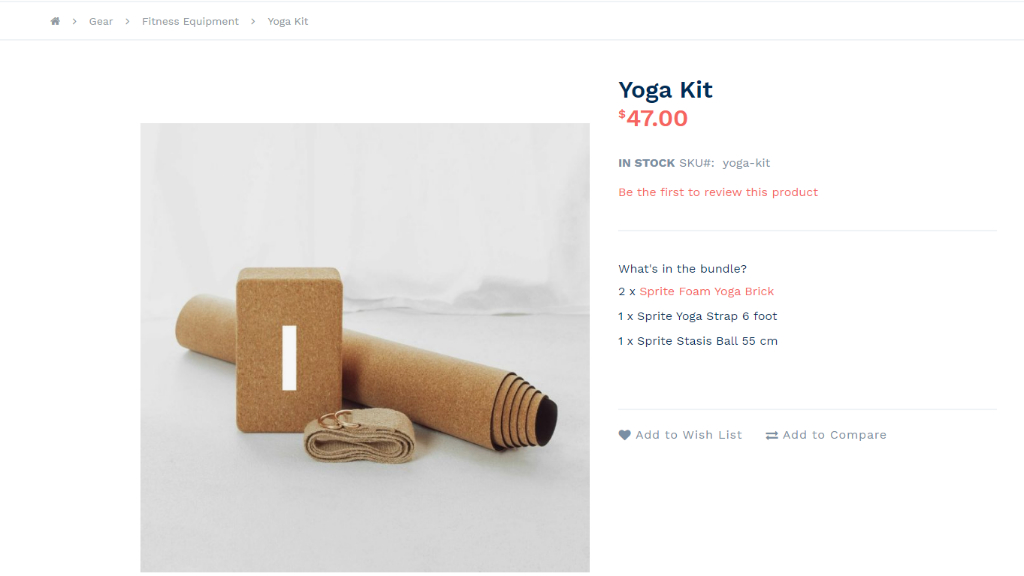
On the storefront, customers can now add already configured bundles to their cart without customizing them just like they do this with a simple product type.
How Does Stock Calculation Logic Work?
From a business perspective, the logic is: a merchant can't deliver the bundle if one of the components is missing. So if at least one of the child products goes out of stock, the whole simple bundle product will go out of stock as well. Still, the backorder functionality is supported.
In case if one of the child product for simple bundle product is out of stock and:
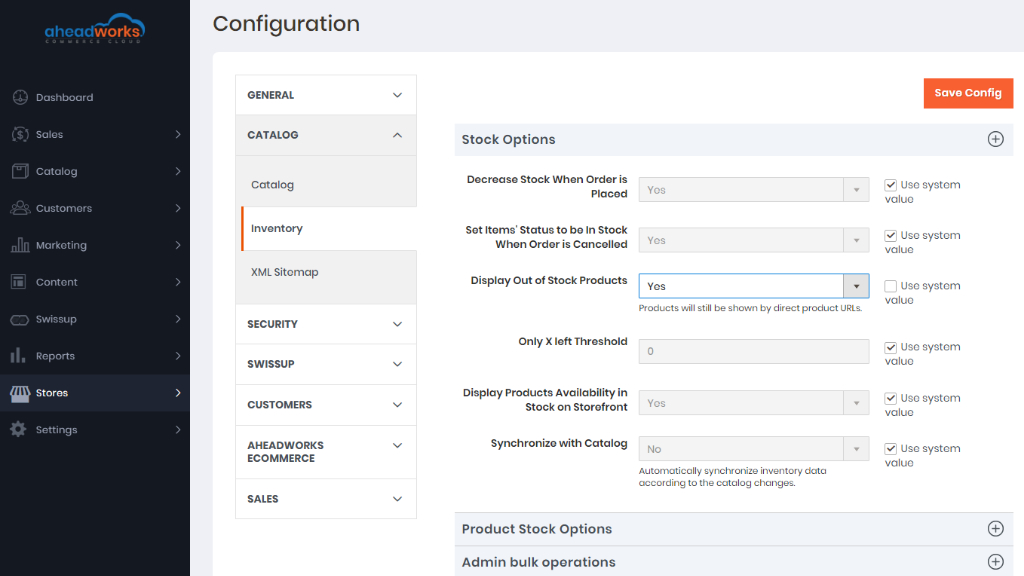
If Display Out of Stock Products set to Yes, then:
- parent simple bundle is out of stock;
- both those products are visible in the catalog, but marked as out of stock;
- simple bundle product final price will be displayed with the same full price as it was before changing child to out of stock.
If Display Out of Stock Products set to No, then:
- parent simple bundle is out of stock;
- both those products are invisible in the catalog, but available by direct product link;
- simple bundle product final price will be displayed excluding the price of children products that are out of stock.
Simple bundle price for the first and the second condition will be different because it is normal behavior, caused by specific of the Magento price index.
How Do I Configure the Module?
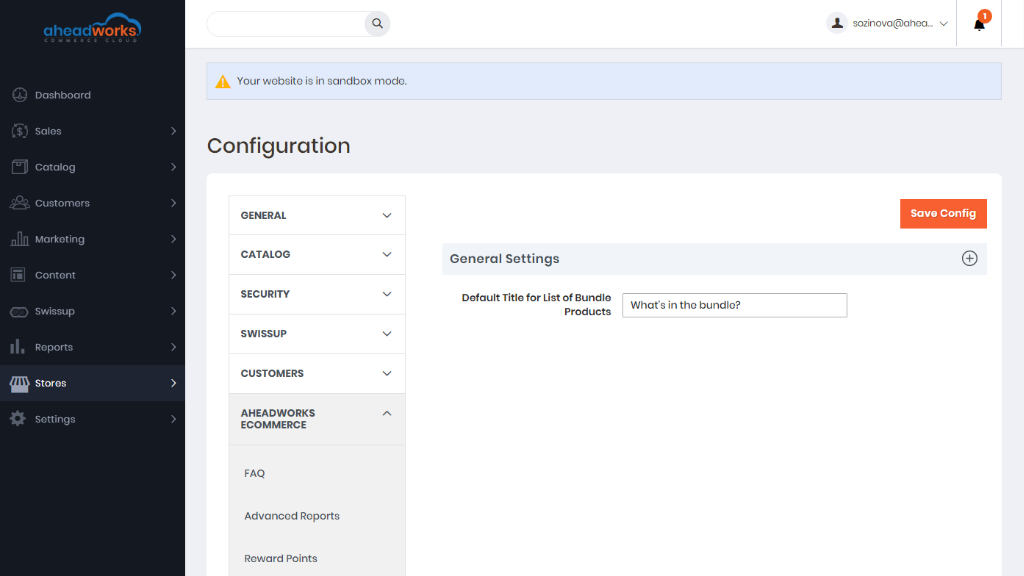
Start with configuring the extension settings under Stores > Configuration > Aheadworks Ecommerce > Simple Bundle Product.
Here you are presented with one option only: 'Default Title List of Bundle Products'. Specify the appropriate title in the field and click 'Save config' to apply the setting.
How Do I Create a Simple Bundle Product?
Now, let’s create a simple bundle. Traditionally, the bundle is configured in Catalog > Products.
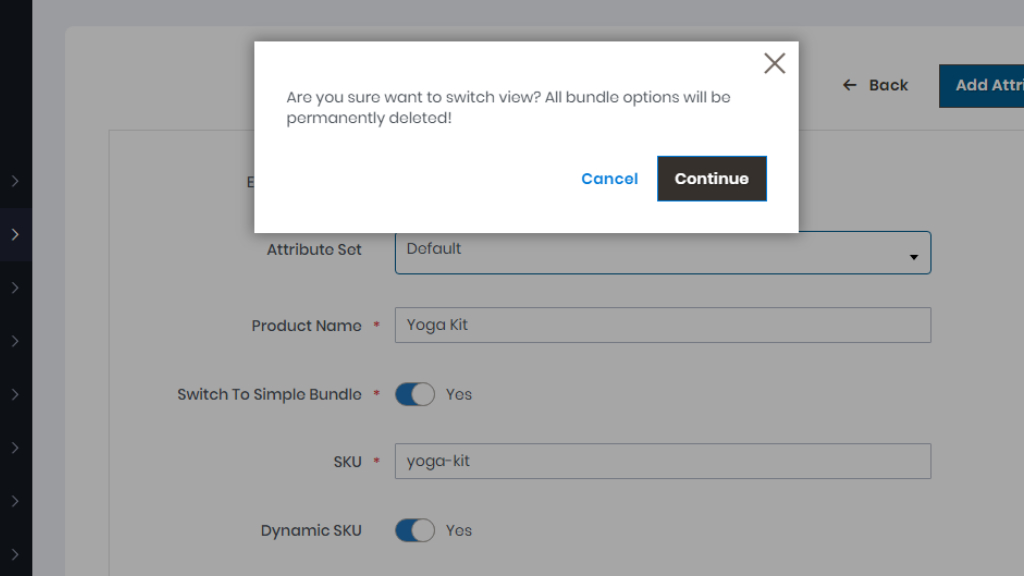
First, switch to the ‘Simple Bundle’ mode.
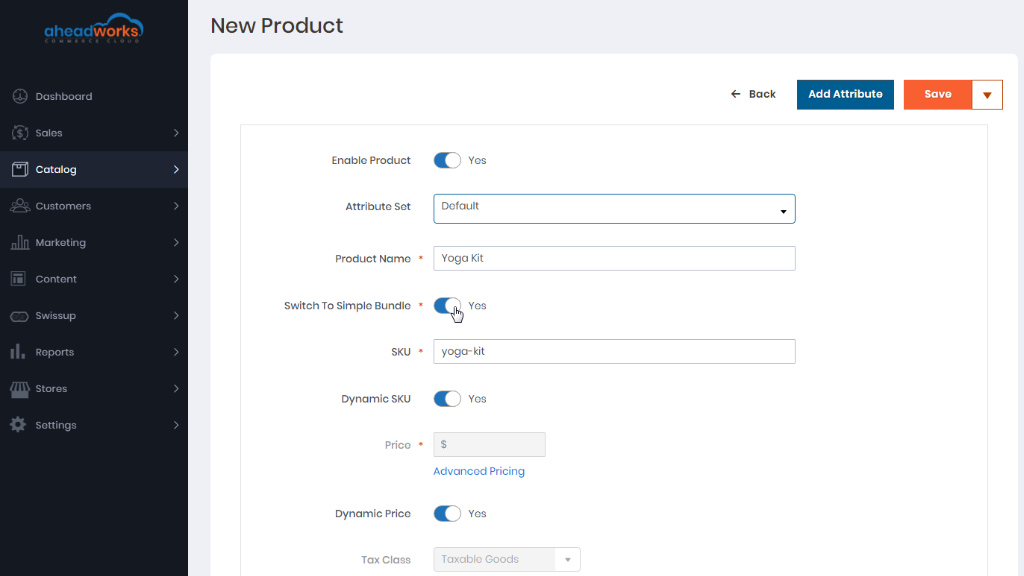
Once you’ve enabled the parameter, the pop-up alert is displayed. It is a warning that the native bundle options will now be unavailable, click 'Continue'.
Next, scroll down to the ‘Bundle Items’ section to see what changed there.
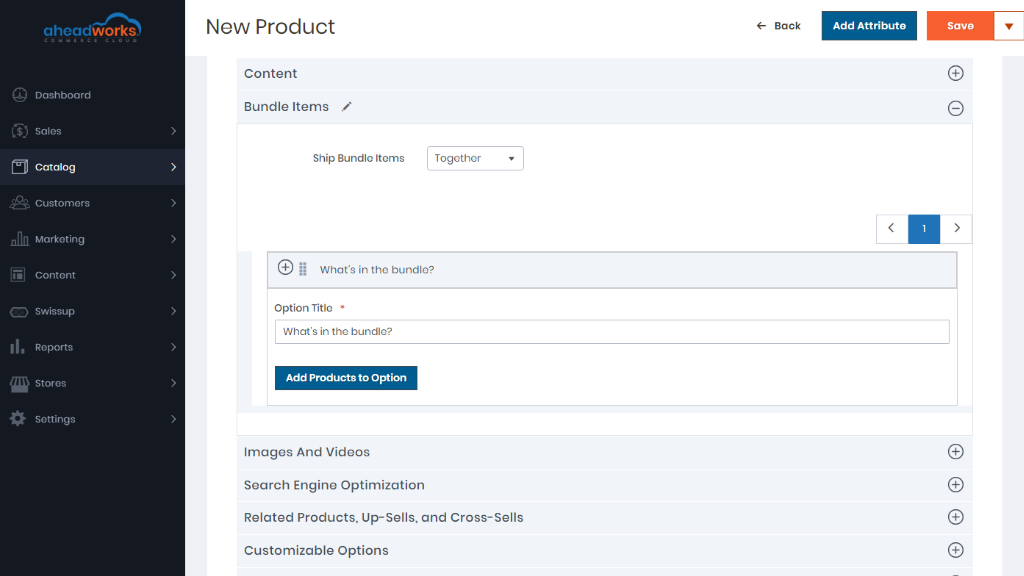
As you can see, the ‘Add Option’ button is now hidden. The ‘Option Title’ field displays the value you previously indicated in the extension settings. So, all you need to do is to add the required items to the bundle the same way as in the native solution. After the bundle is composed, the section will look like this:
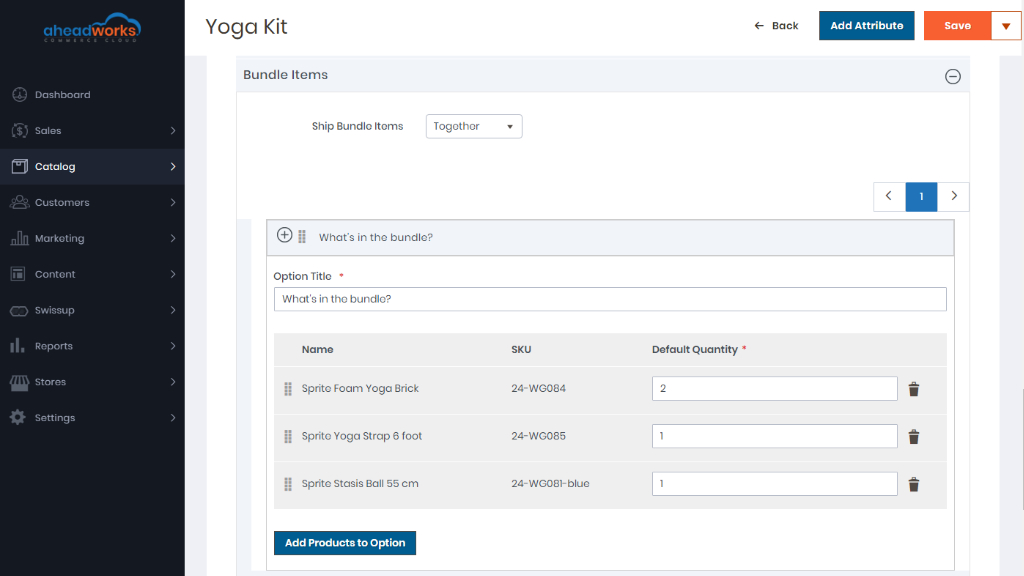
In the simplified view, the ‘Input Type’ section is now hidden. It’s automatically set to ‘Checkbox’ and can't be deselected by a customer on a storefront. The ‘Required’ parameter is enabled by default.
How Do I Use Bundle Conversion?
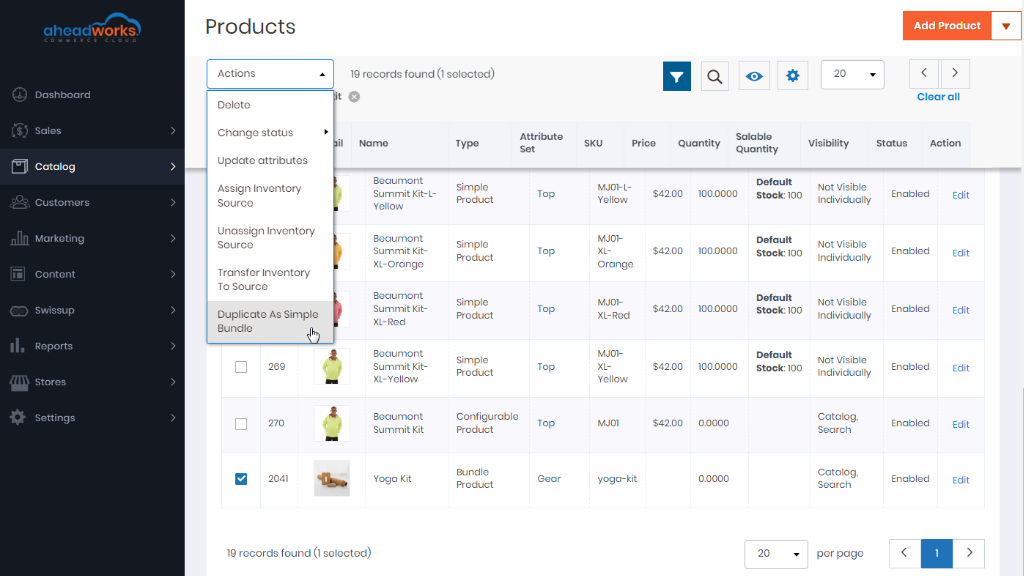
You can easily turn native bundles into simple ones at the backend catalog page.
Select the bundles you want to convert and apply massive action to the products.
How Do I Add Bundles to New Orders?
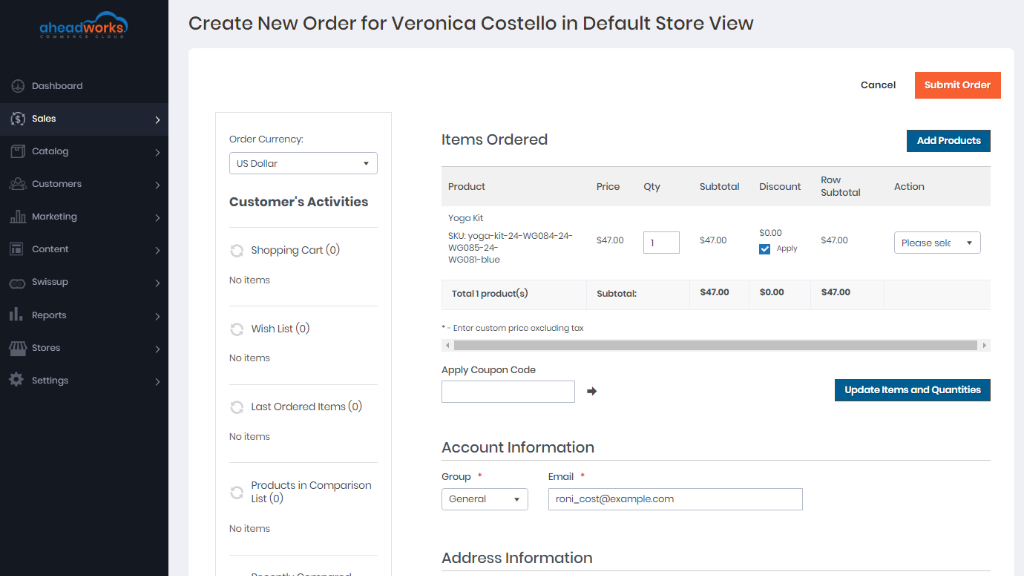
In addition to bundle creation, the module improves the functionality of the ‘New Order’ page.
Let’s see it in action! Go to Sales > Orders and click on the Create New Order button. Select the required customer and start adding products to the order.
How Do I Use Bundle Products on the Storefront?
Simple Bundle Product makes the interface of bundle product pages more user-friendly. Bundle items are presented as a list with active links to corresponding item pages. All the required configuration is already performed for customers. They just need to add the product to a cart.